
We are Official Certified bubble.io & flutterflow App Development partner


Page Parameters • App State • Temp Data
1. Temp Data:
Temp State (also called Local State or Widget State) is a variable that exists only within a specific widget, component, or page. It is not accessible from other screens and disappears when the widget is removed from the UI.
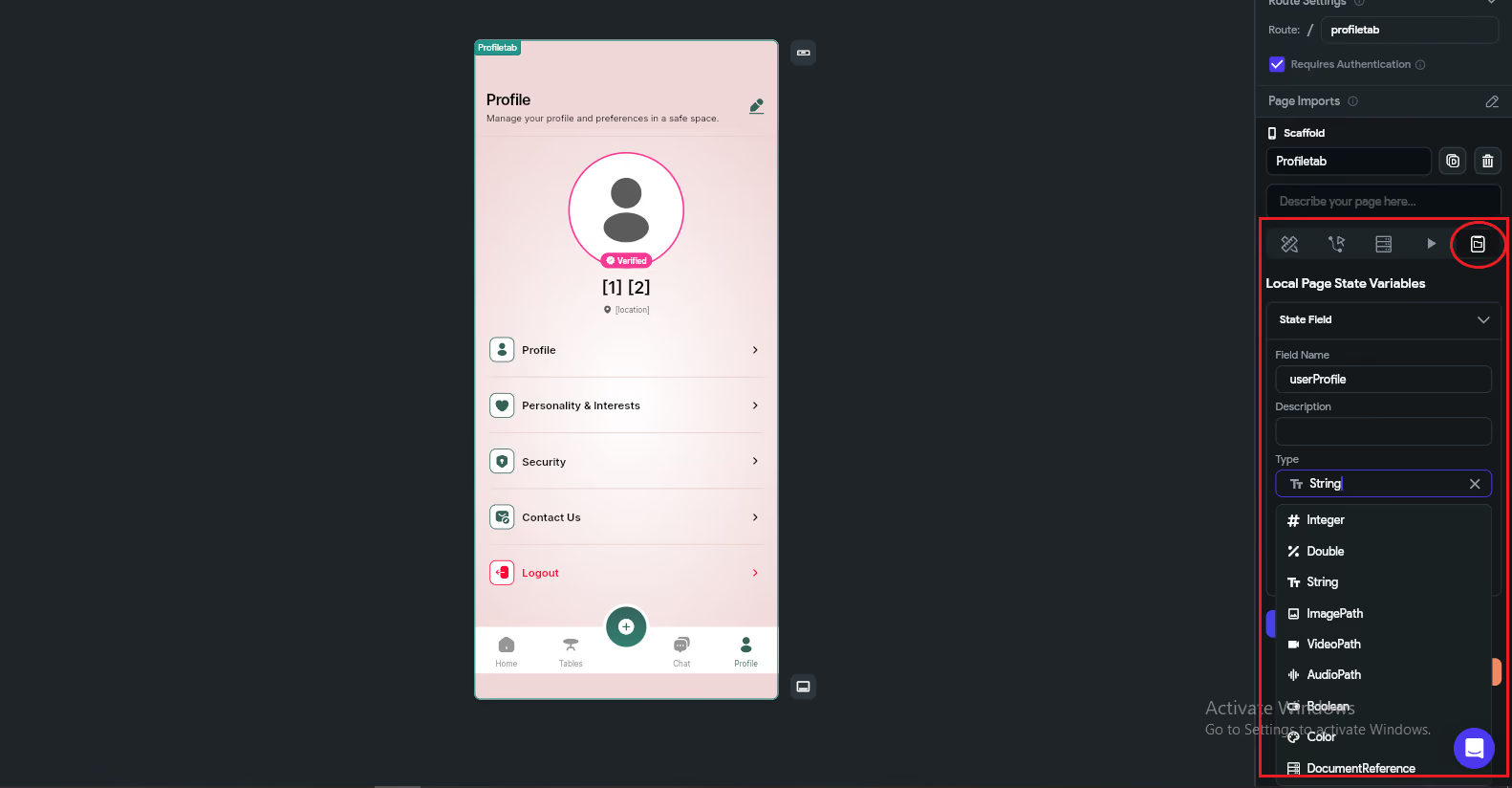
To create a Local Variable (Page State / Component State) in FlutterFlow, first you need to open the specific page or component where you want to use that variable. For example, if you want to store data for a profile page, open that page in the FlutterFlow editor.
Once the page is open, go to the right side panel. There you will see different tabs like Page Parameters, Backend Query, and State Management. Click on “Page State” (or “Component State” if you are inside a component).
Now click on the “Add Field” button. This is where you create your local variable.
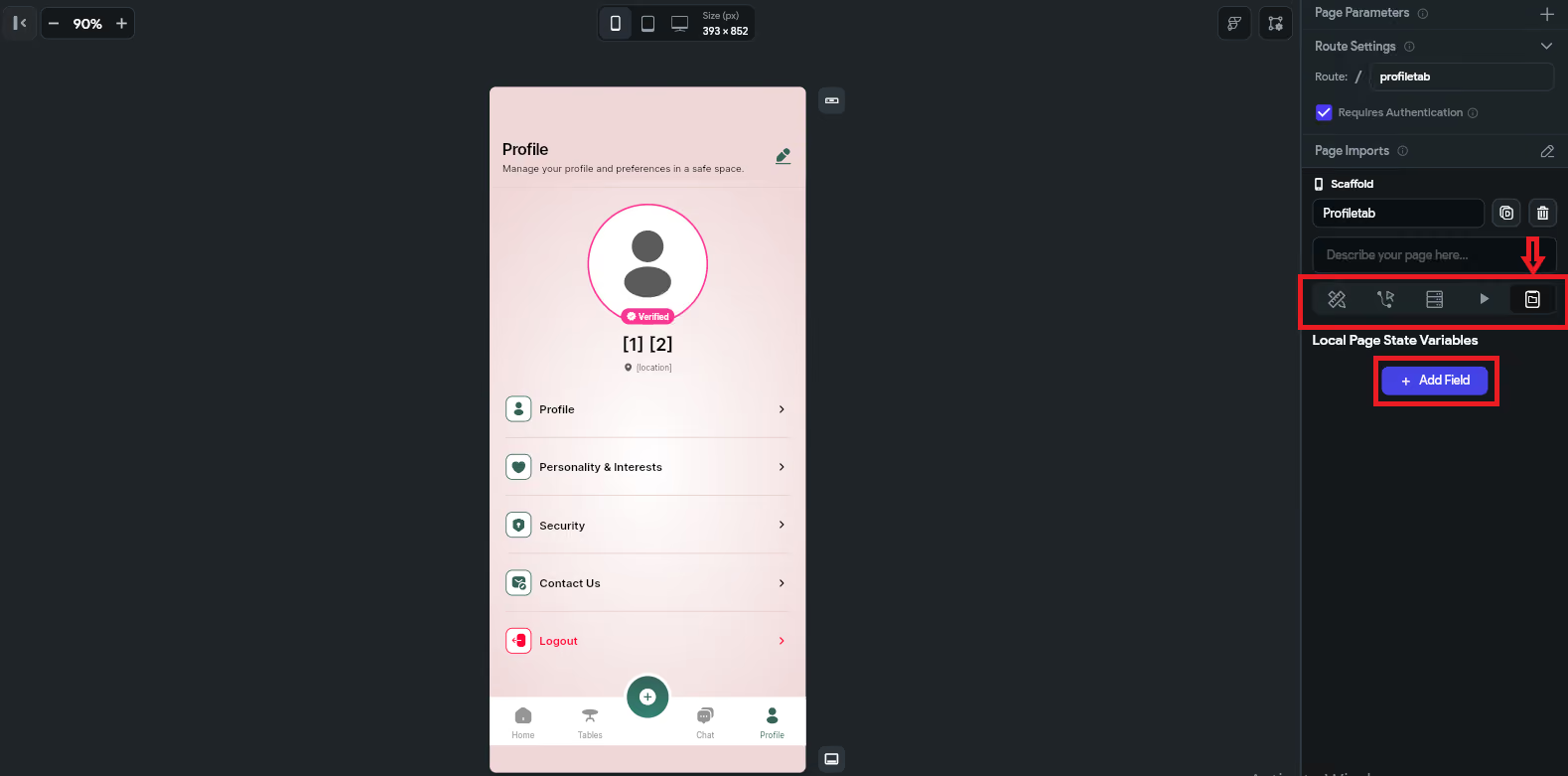
After clicking, a form will appear with multiple options:
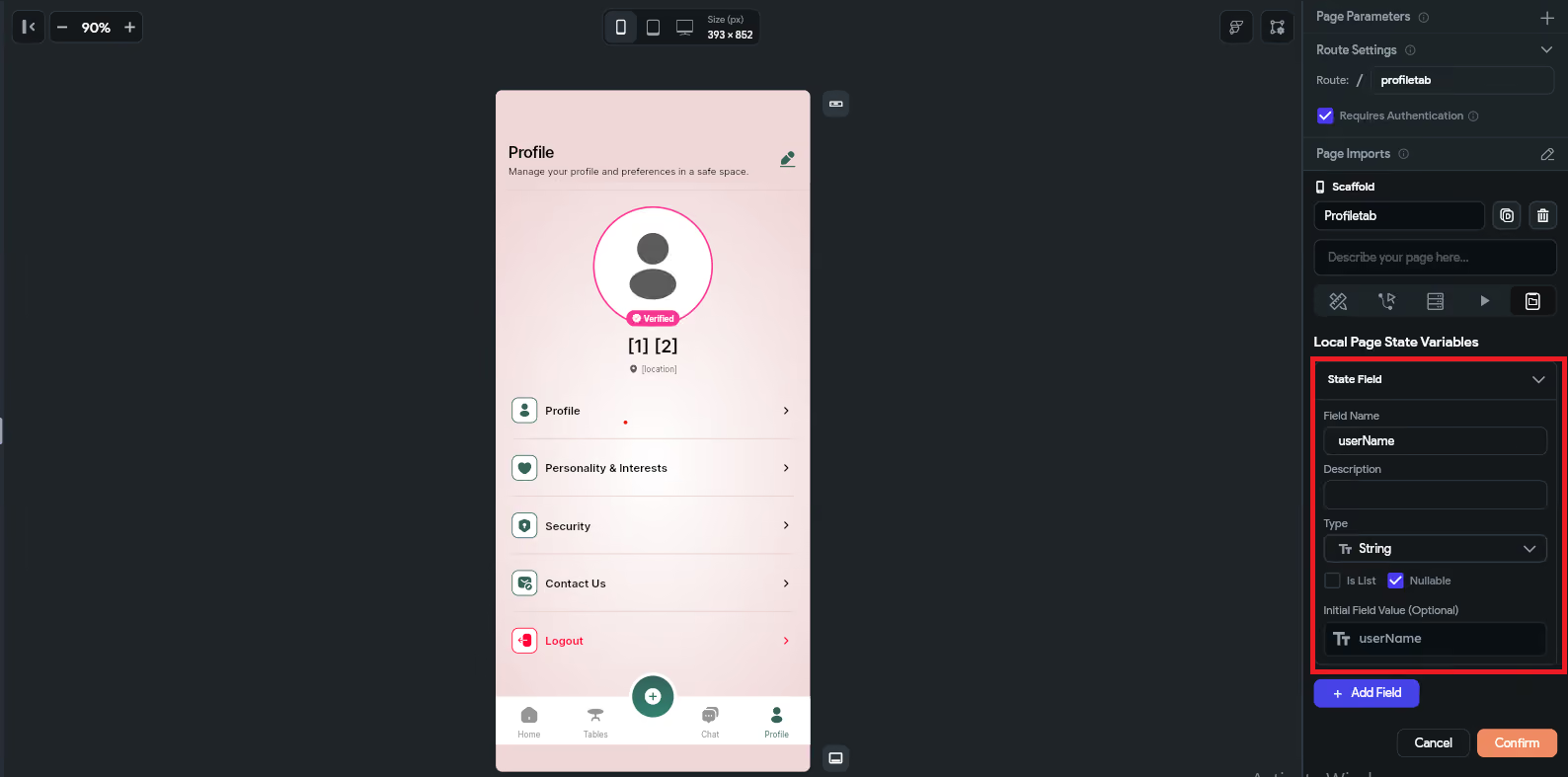
This is how you create and configure local variables in FlutterFlow for a specific page or component. By following these steps, your page or component state will be successfully created and ready to use in your application. You can also create multiple states within the same page or component to manage different types of data, such as loading states, user input values, API responses, or UI conditions, which helps in building more dynamic and interactive screens.
Limitations of Page & Component State
However, it is important to use page or component states carefully. These variables are temporary and only exist within the specific page or component, meaning they reset when the page is refreshed or the user navigates away. Also, avoid creating unnecessary or too many state variables, as it can make the project harder to manage and may affect performance and readability of your app logic.
When defining variables, always make sure the name is clear, meaningful, and easy to understand for other developers. For example, use names like isLoading, userName, or selectedIndex instead of unclear names like var1 or data. The variable type should also match its purpose, such as using Boolean for true/false conditions, String for text, and Integer or Double for numbers. Keeping proper naming conventions and correct data types in mind will make your app structure clean, scalable, and easier to debug in the future.
2. App Data
App State is a powerful feature used to manage global data across the entire application. Once an App State variable is created, it can be accessed and updated from any screen, widget, or action without needing to pass data manually between pages. This makes it very useful for handling shared values like theme setting and cart items.
App State is typically updated through actions such as button clicks, API responses, authentication events, or navigation triggers. After updating, the value becomes immediately available throughout the app, allowing real-time UI updates and dynamic behavior across multiple screens.
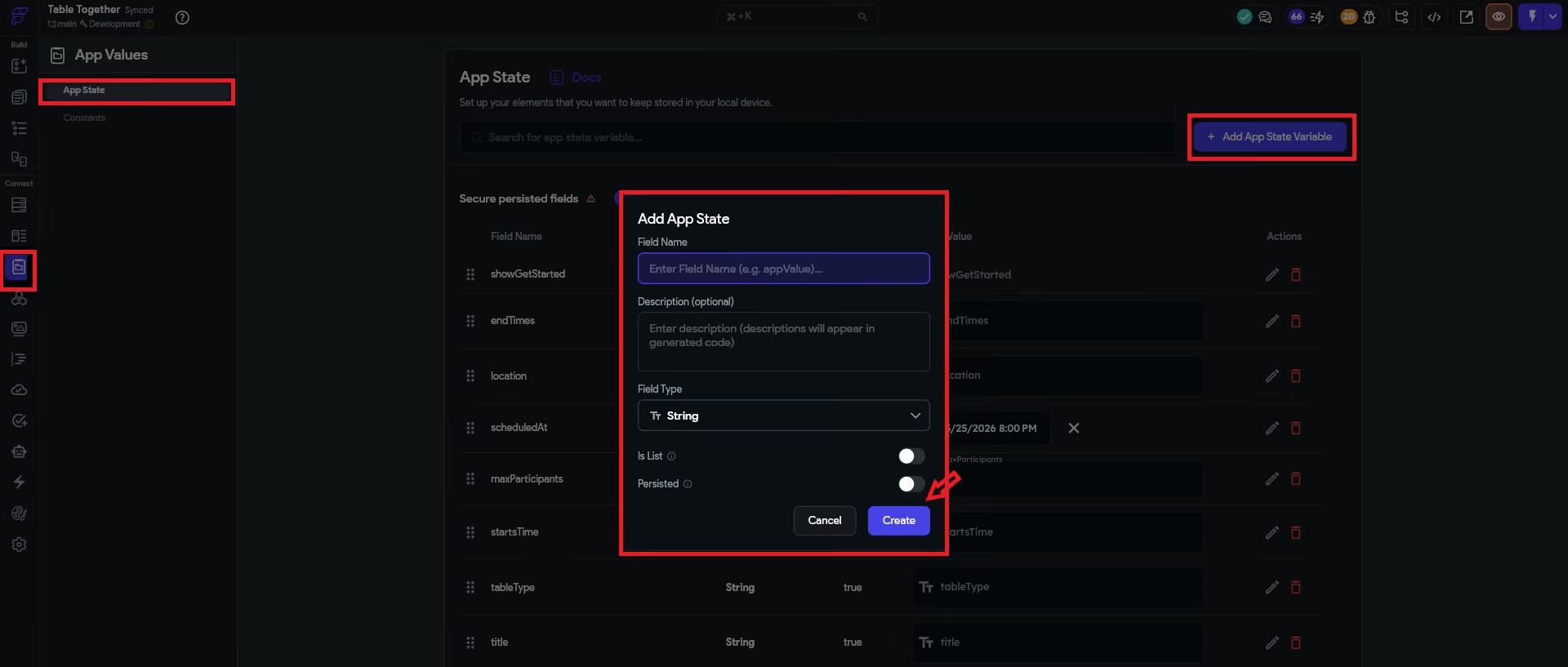
How to Create an App State Variable
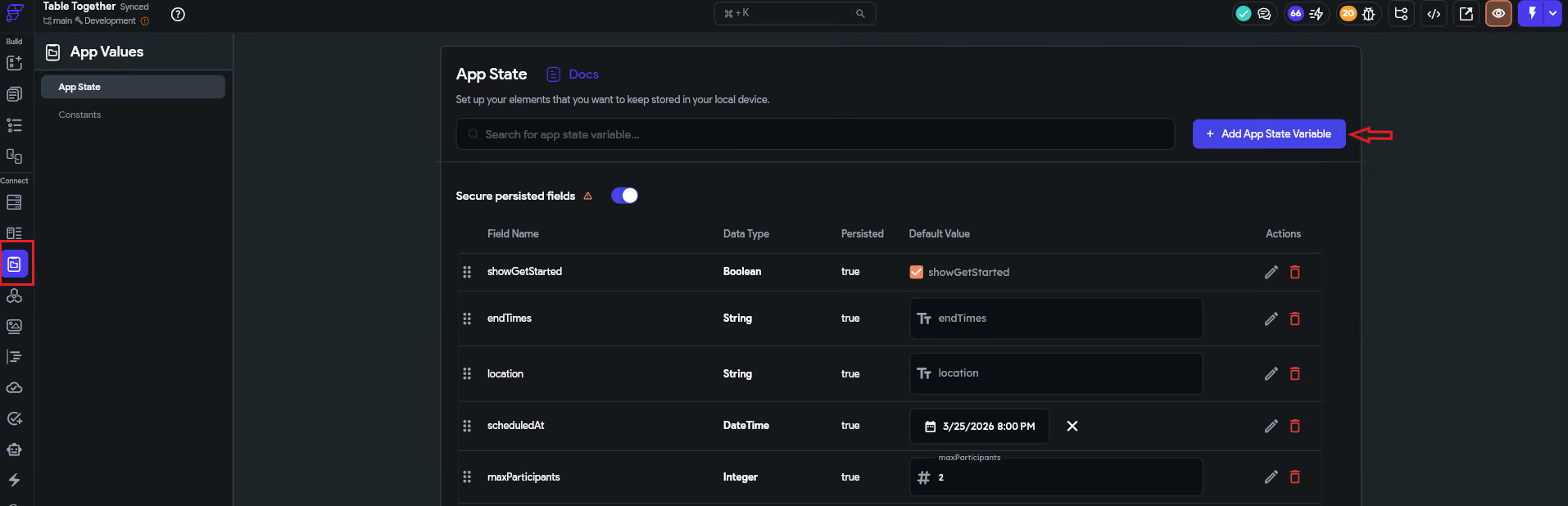
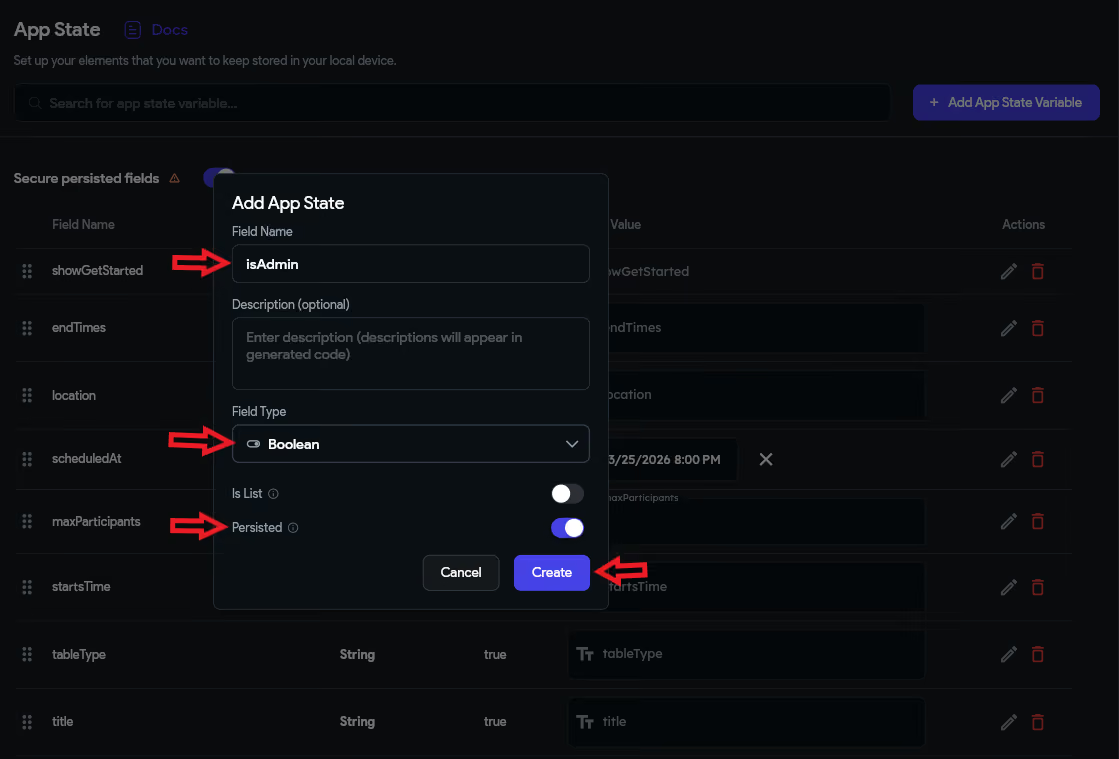
App State is commonly used for:
Although App State is very useful, it has some limitations. It is mainly designed for temporary or session-based data, so if the app is restarted and the variable is not marked as Persisted, the data will be lost. Overusing App State for large or complex data structures can also make the app harder to manage and may impact performance.
Another important limitation is that App State is not a replacement for a database. It should not be used to store critical or permanent data like user records, transactions, or sensitive information. Instead, it should be used only for UI-level state management and temporary data handling.
3. Screen to Screen Data Passing
Page Parameters are variables that you define on a screen (page) and pass values into when navigating to that screen. They work like function arguments — when you open (navigate to) a screen, you send the required data with it so the next screen can use it.
Note: Page Parameters only exist for the lifetime of that screen. When the user leaves the screen, the data is automatically removed.
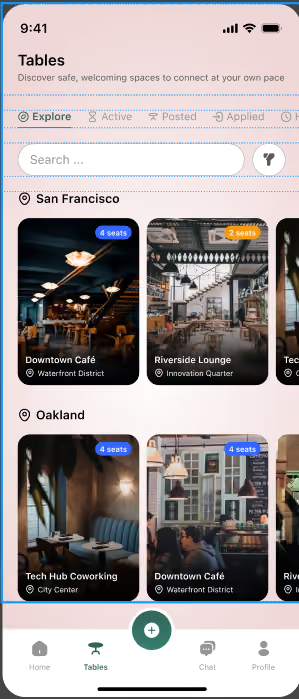
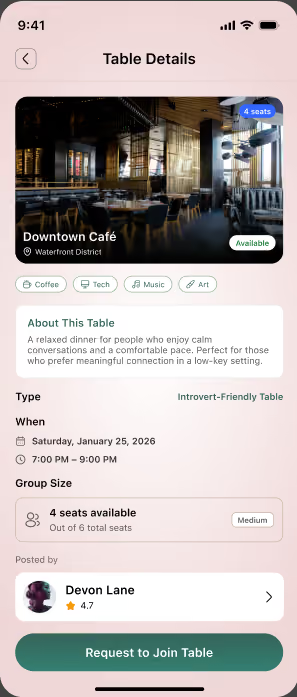
SCREEN (1) SCREEN (2)
Step 1: Create Page Parameters on Screen 2 (Receiver Screen)
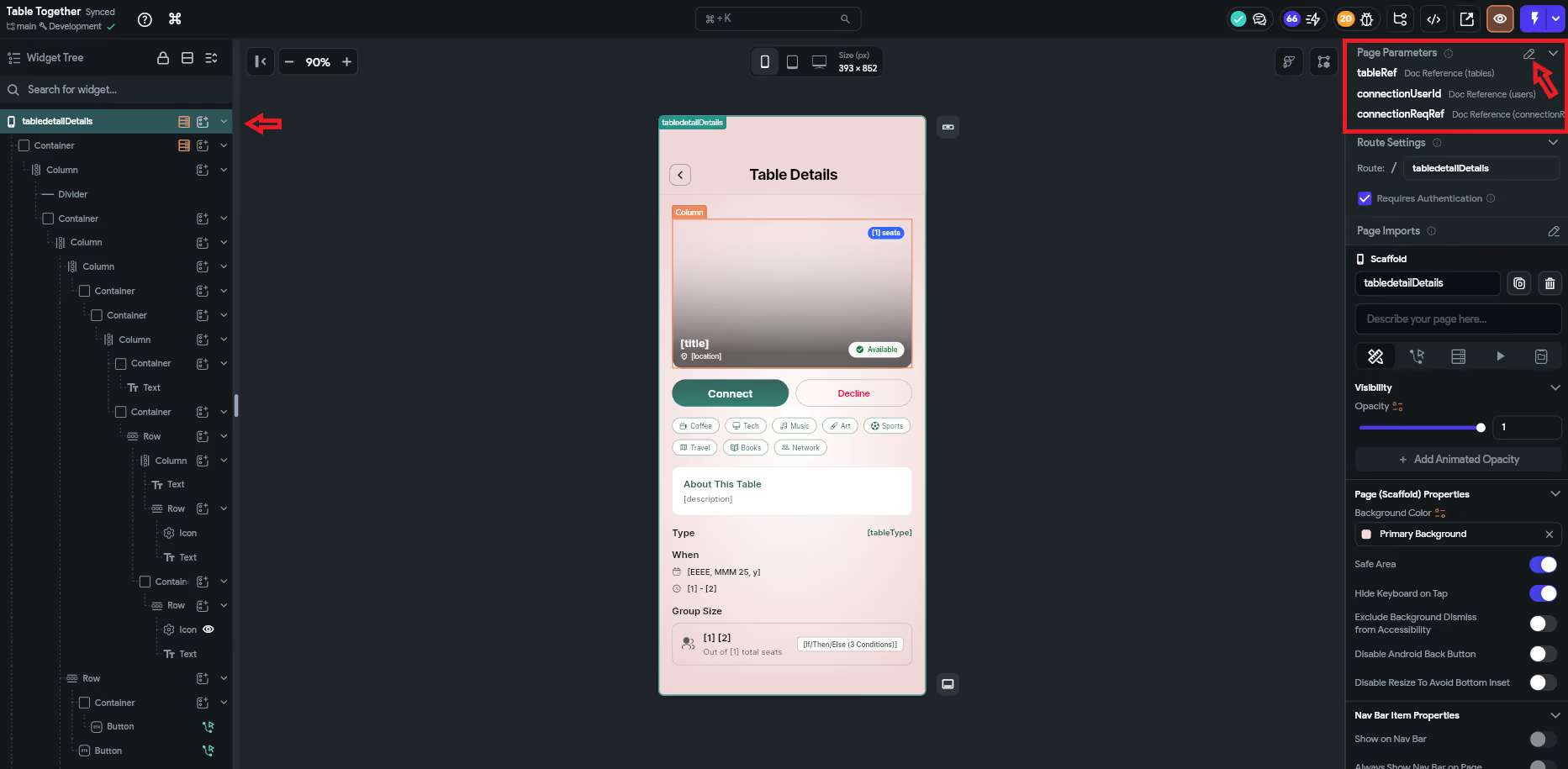
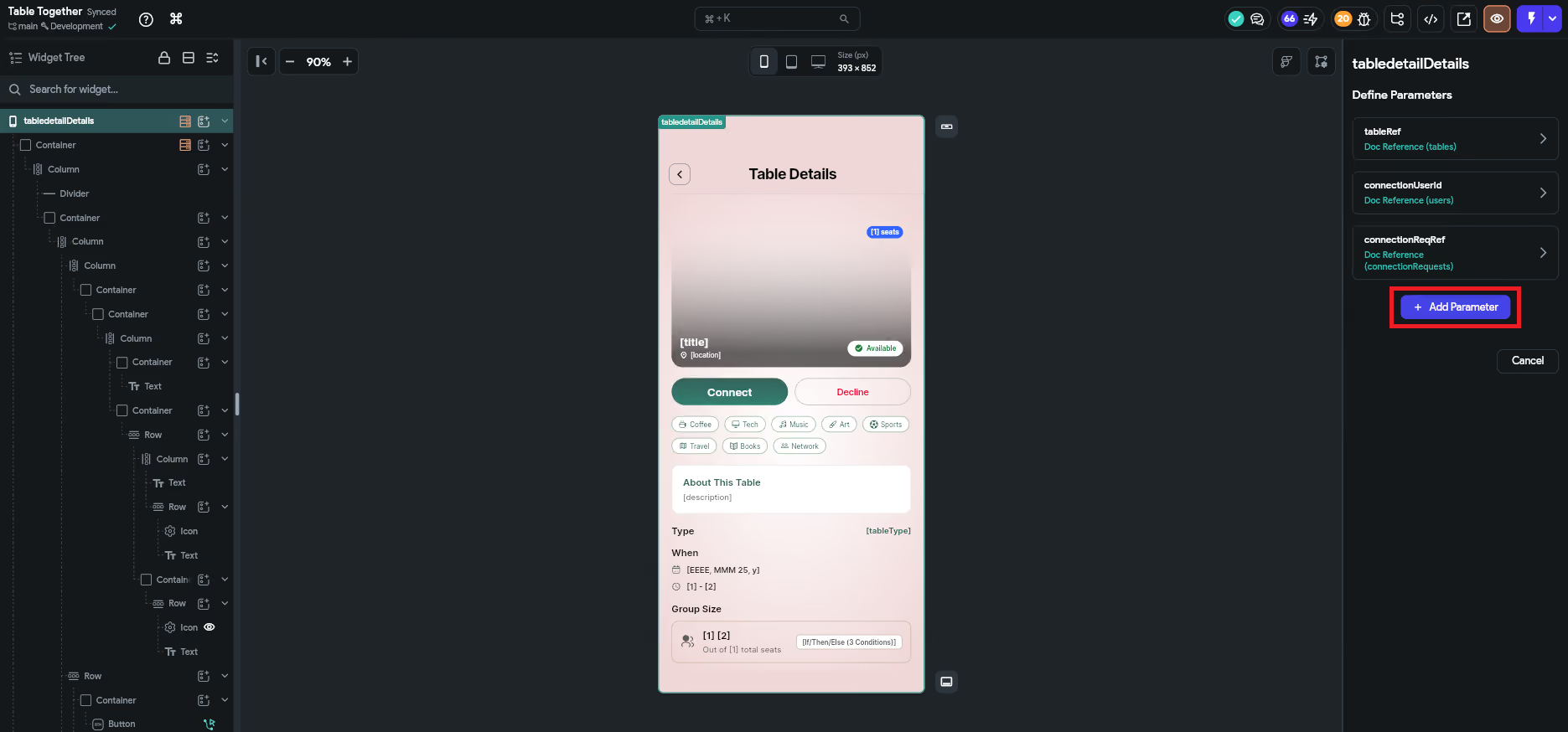
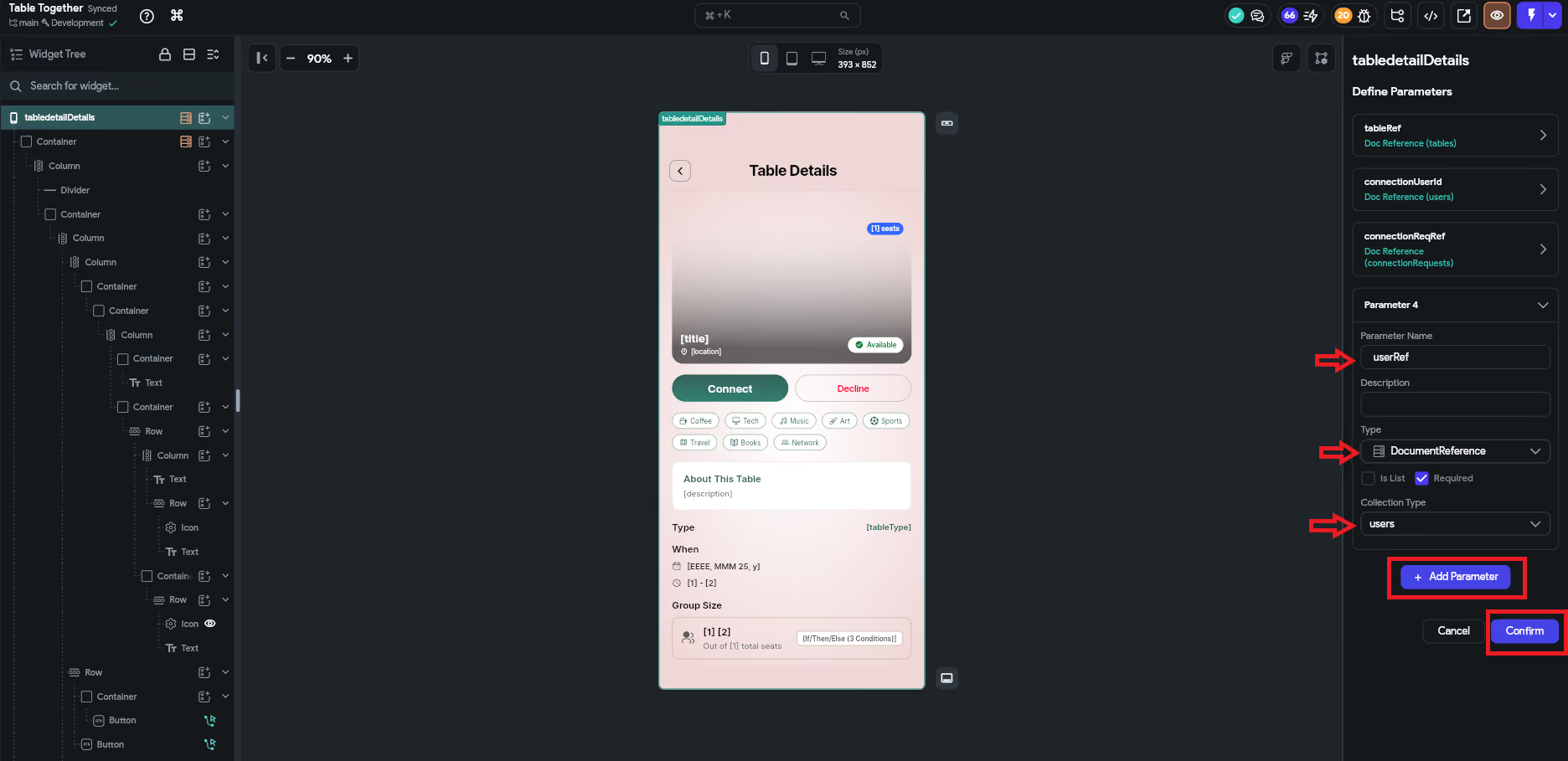
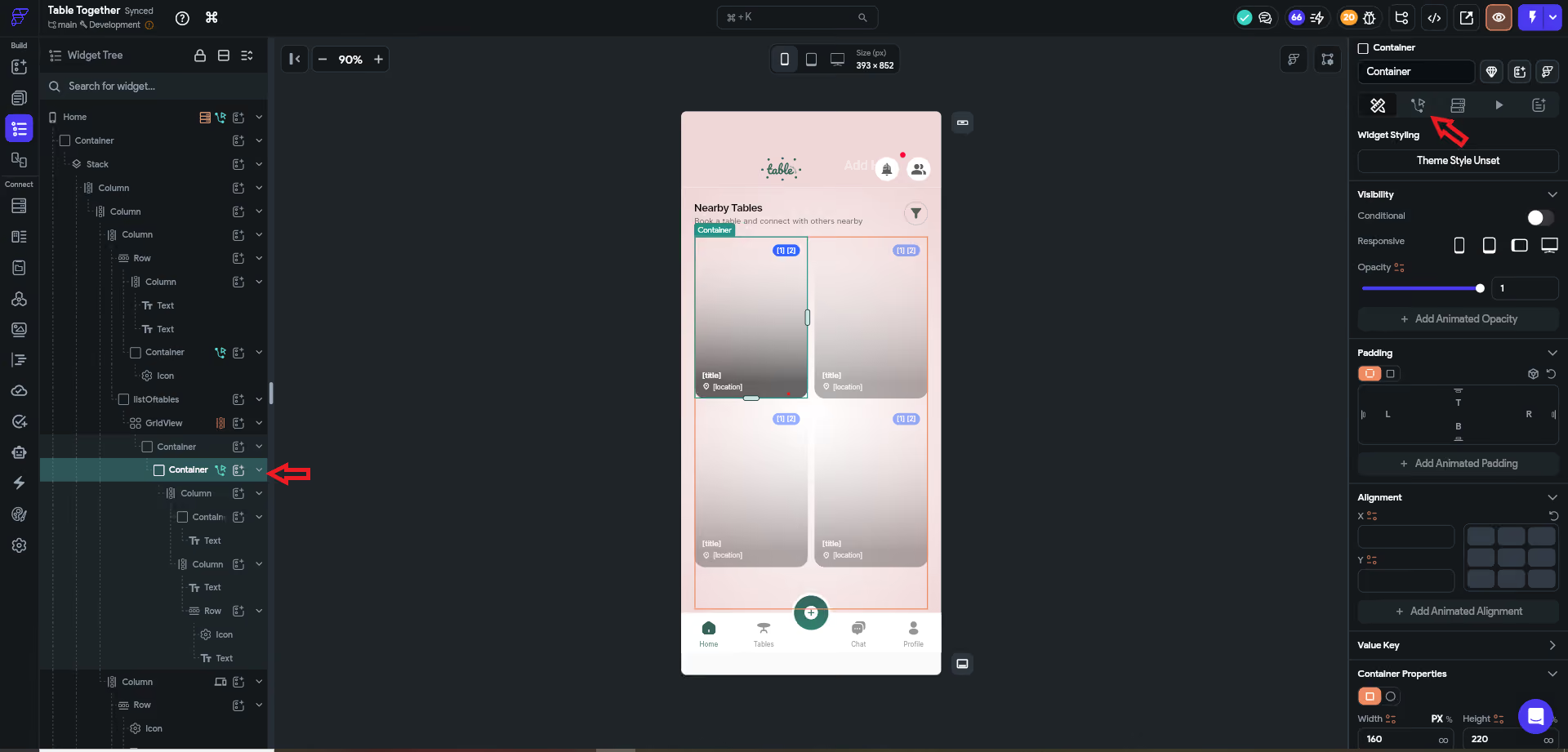
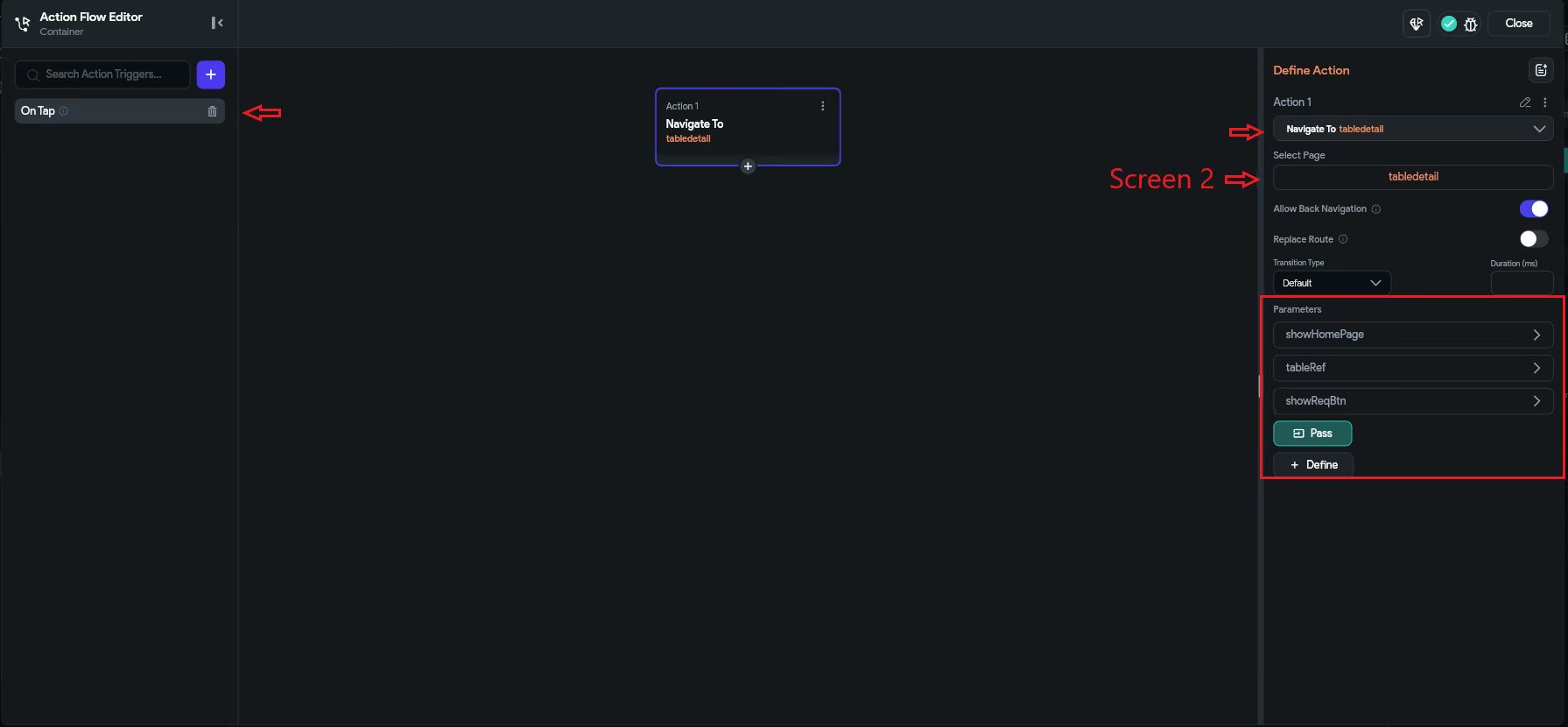
Navigate To Screen 2
Page Parameters are commonly used for:
Page Parameters are temporary and only exist on the current screen. They cannot be shared globally across the app. Once the user navigates away or refreshes the screen, the data is lost. Also, they are not suitable for storing persistent or large-scale data — they should only be used for screen-specific navigation data.
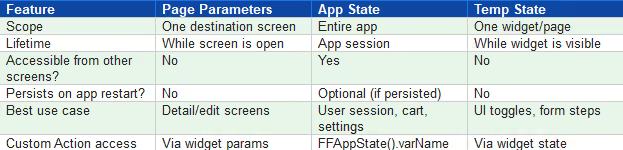
4.2 Quick Summary Comparison
.svg)
.svg)


.avif)
