
We are Official Certified bubble.io & flutterflow App Development partner


FlutterFlow provides a robust set of built-in layout elements and widgets that satisfy the design requirements of most applications. However, when you need a highly specialized visual element, a unique layout structure, or a specific functional behavior that goes beyond the standard options, Custom Widgets bridge the gap.
This guide walks you through the What, Why, and How of building custom UI components, featuring a real-world example that solves one of the most common challenges developers face when handling database records.
A Custom Widget in FlutterFlow is a reusable user interface component written in native Flutter (Dart) code. Unlike Custom Functions (which handle quick math/logic) or Custom Actions (which handle background workflows), Custom Widgets are designed entirely to render visual components on the screen.
Integrating custom UI code into your visual builder unlocks advanced frontend capabilities:
When building data-driven applications in FlutterFlow, you frequently need dropdown menus to let users choose an item from a database collection (e.g., selecting a Category, a City, or an Assignment).
The standard FlutterFlow dropdown widget presents a major limitation here: It forces you to choose between displaying a clean label or capturing the underlying document reference. If you populate the dropdown with a list of document strings (like category.name), the dropdown's selected value output is just that literal string.
If two categories have the same name, or if you need the actual backend Firestore Document/Reference ID to attach to a new record, a string output isn't enough. You are forced to perform complex backend lookups just to find the document that matches the selected text, which wastes read operations and slows down your application.
We solve this by building a Firestore Custom Dropdown Widget. This custom component accepts the entire list of database documents directly. It visually displays the readable string property (like a name or title) inside the UI, but when a user makes a selection, it returns the entire database record object back to FlutterFlow through a Callback Action.
[📷 Screenshot Placeholder 1]
Capture the FlutterFlow custom code manager panel with the "+ Add > Widget" option selected and the primary settings dashboard open.
To pass records in and send chosen objects out, define your properties in the right configuration panel:
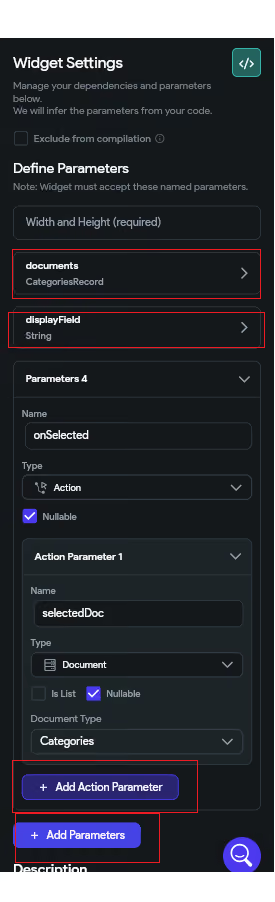
Copy and paste the code below into the center code editor window:
// Automatic FlutterFlow imports
import '/backend/backend.dart';
import '/backend/schema/structs/index.dart';
import '/backend/schema/enums/enums.dart';
import '/actions/actions.dart' as action_blocks;
import '/flutter_flow/flutter_flow_theme.dart';
import '/flutter_flow/flutter_flow_util.dart';
import '/custom_code/widgets/index.dart'; // Imports other custom widgets
import '/custom_code/actions/index.dart'; // Imports custom actions
import '/flutter_flow/custom_functions.dart'; // Imports custom functions
import 'package:flutter/material.dart';
// Begin custom widget code
// DO NOT REMOVE OR MODIFY THE CODE ABOVE!
class FirestoreDropdown extends StatefulWidget {
const FirestoreDropdown({
super.key,
this.width,
this.height,
required this.documents,
required this.displayField,
required this.onSelected,
});
final double? width;
final double? height;
final List<CategoriesRecord> documents;
final String displayField;
final Future Function(CategoriesRecord? selectedDoc) onSelected;
@override
State<FirestoreDropdown> createState() => _FirestoreDropdownState();
}
class _FirestoreDropdownState extends State<FirestoreDropdown> {
CategoriesRecord? _selectedValue;
@override
Widget build(BuildContext context) {
return SizedBox(
width: widget.width,
height: widget.height,
child: DropdownButton<CategoriesRecord>(
value: _selectedValue,
hint: const Text('Select an option'),
isExpanded: true,
items: widget.documents.map((CategoriesRecord document) {
// Extracts the display field dynamically, falling back to a default value
final displayValue = document.name ?? 'Unnamed';
return DropdownMenuItem<CategoriesRecord>(
value: document,
child: Text(displayValue),
);
}).toList(),
onChanged: (CategoriesRecord? value) {
setState(() {
_selectedValue = value;
});
// Triggers the FlutterFlow callback action, passing back the entire document reference object
widget.onSelected(value);
},
),
);
}
}
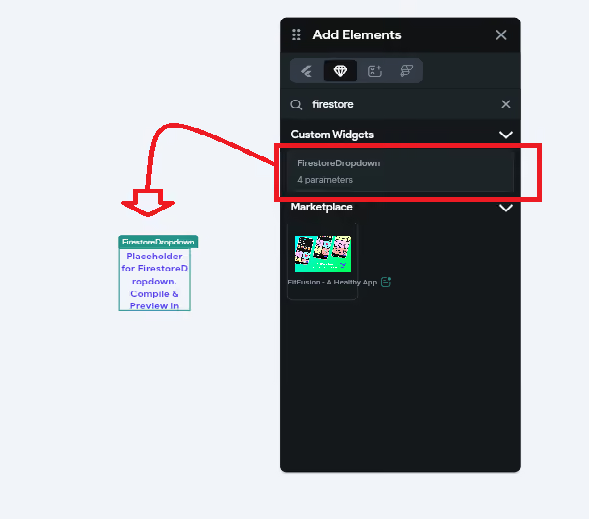
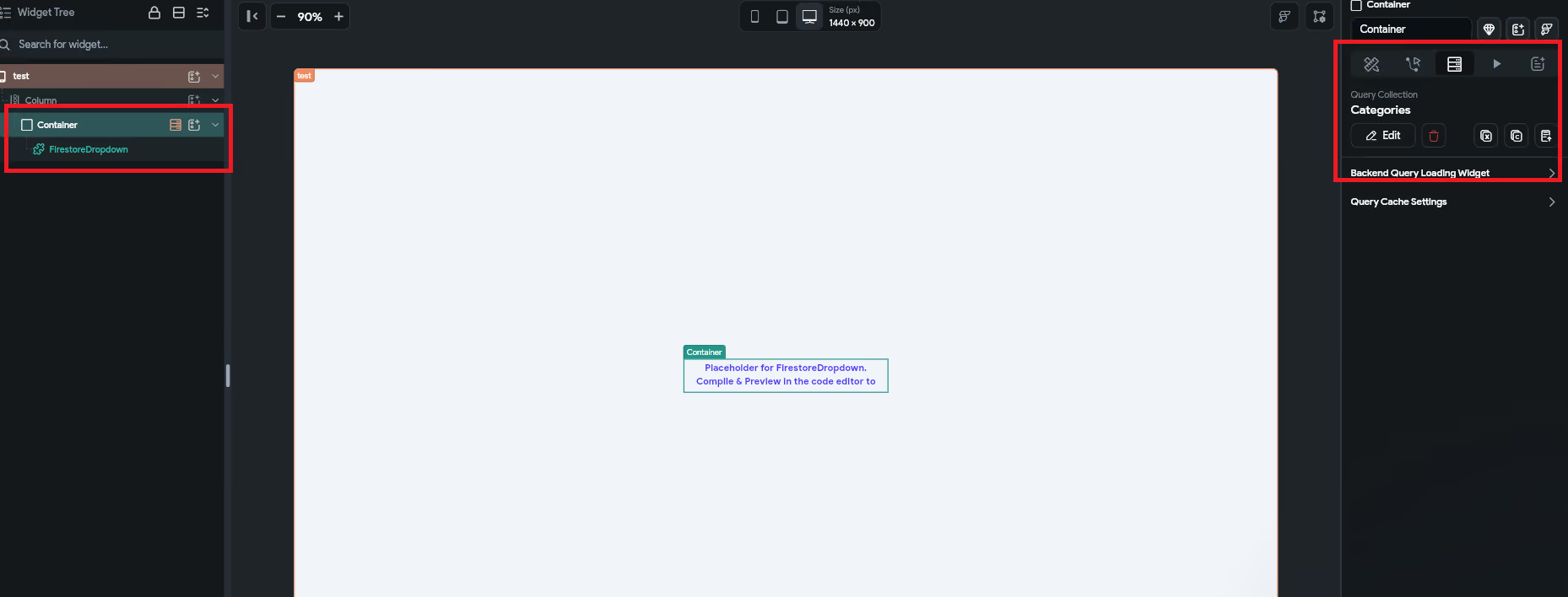
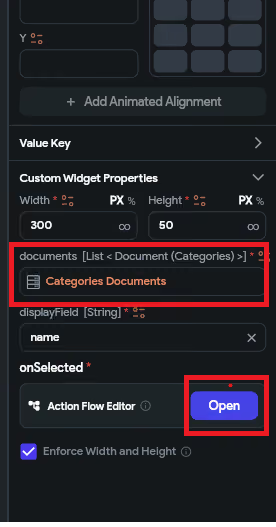
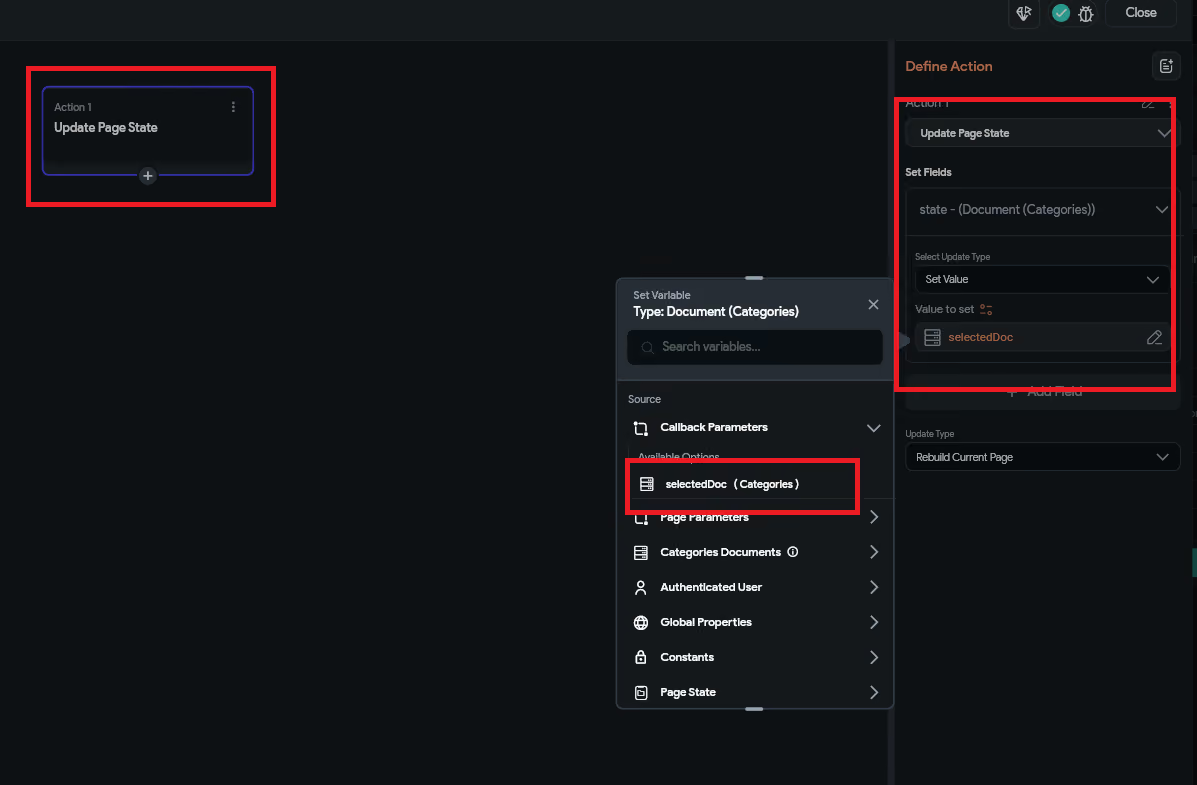
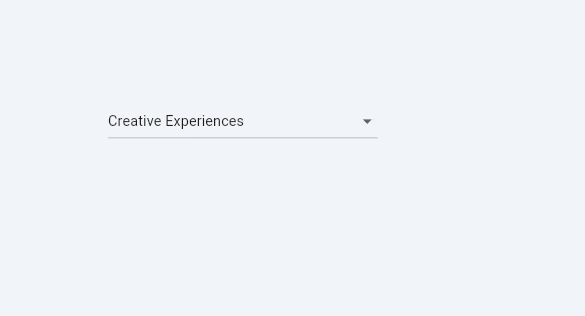
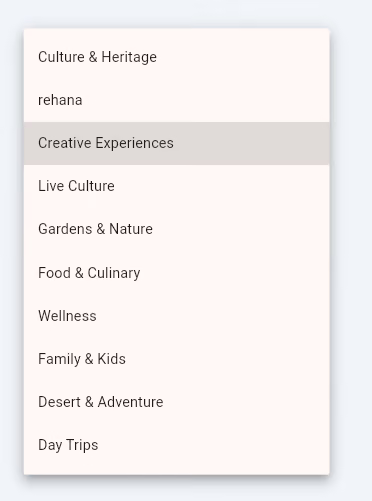
Now you can use this state anywhere. It will return you the whole document not only the title or display name.
If your backend query yields zero results (e.g., an empty collection), passing an empty list to certain dropdown layouts can sometimes result in sizing anomalies or unexpected behaviors. Always use conditional visibility on the parent container to show a simple placeholder state if the target document list count equals zero.
When building custom inputs, prioritize wrapping internal element trees with layout boundaries that look clean on various viewports. Setting isExpanded: true on your DropdownButton combined with an outer SizedBox bound to widget.width ensures your custom element spans elegantly to fill its visual layout container.
If you decide to reuse this template for different collections (e.g., swapping CategoriesRecord out for an AssignmentsRecord), update the import references and schema data type targets explicitly across the code parameters. Matching your variables with strict document definitions prevents compilation errors during complex environment builds.
.svg)
.svg)


.avif)
