
We are Official Certified bubble.io & flutterflow App Development partner


Your app needs somewhere to store information. Think of Firestore like a filing cabinet in the cloud.
Just like a real filing cabinet:
Imagine you run a coaching app. Ali books 10 appointments.
The Wrong Way (Storing everything in each appointment):
Appointment 1: "Coaching Session"
- Student Name: Ali
- Student Email: ali@email.com
- Student Phone: 03001234567
- Coach Name: Sarah
- Coach Email: sarah@email.com
- Coach Phone: 032310456988
Appointment 2: "Coaching Session"
- Student Name: John
- Student Email: john@email.com
- Student Phone: 0300125678
- Coach Name: Sarah
- Coach Email: sarah@email.com
- Coach Phone: 032310456988
Appointment 3: "Coaching Session"
- Student Name: Darry
- Student Email: darry@email.com
- Student Phone: 03901238567
- Coach Name: Sarah
- Coach Email: sarah@email.com
- Coach Phone: 032310456988
Problems:
The Right Way:
Users:
- Sarah: Email: sarah@email.com, Phone: 032310456988
Appointments:
- Appointment 1: Points to Sarah
- Appointment 2: Points to Sarah
- Appointment 3: Points to Sarah
Benefits:
Real Example: Sarah changes her phone to 03109876543
Without connections: Update 10 appointment cards
With connections: Update Ali's user card once, done!
A Document Reference is like a link or pointer. It says: "Hey, this appointment belongs to THIS user."
Instead of copying Sarah's name into the appointment, you just point to Sarah's user card.
Without Reference:
Appointment Card:
- Title: Coaching
- Student: Ali Khan
- Email: ali@email.com
- Phone: 03001234567
- Coach Name: Sarah
- Coach Email: sarah@email.com
- Coach Phone: 032310456988
With Reference:
Appointment Card:
- Title: Coaching
- Student: → [Points to Sarah's card in Users collection]
It's like having a sticky note that says "See Sarah's card for his info" instead of writing his whole biography on every appointment.
You will tell FlutterFlow: "This appointment should point to a user."
What you've created:
appointments collection:
title: "Coaching Session"
date: "Jan 15"
user_reference: → Points to users collection
Now every appointment can say which user it belongs to

Your appointment now points to a user. But you need to actually show the user's information on your app.
Part 1: Get the data (Backend)
Part 2: Show the data (Frontend)
What just happened: You told FlutterFlow: "When someone (like Ali or Sarah) views an appointment, automatically go fetch the user that this appointment points to."
Steps to Apply a Query
Backend Query > Add query > Select query type
Used to retrieve multiple documents from a collection.
Used to fetch one specific document.
Filters allow you to display only records that meet certain conditions.
Example:
Status = Active and User ID = Current User
FlutterFlow supports document references, making it easy to connect related collections and retrieve linked data.
Filter Queries in FlutterFlow
Filter queries allow developers to retrieve specific records based on conditions.

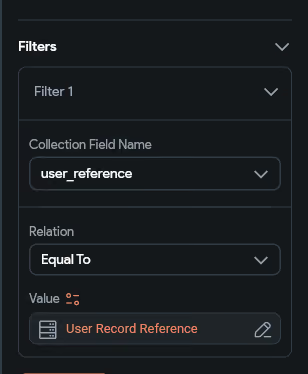
if you want to show only appointments created by the currently logged-in user:
Collection Query:
appointments
Filter:
user_reference = Current User Reference
This query returns only appointments linked to the authenticated user.

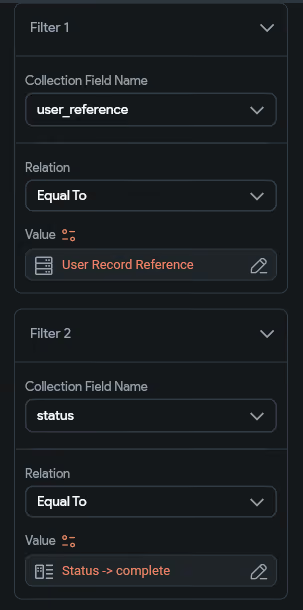
Another example:
if you want to show only appointments created by the currently logged-in user and the appointment status is complete
Collection Query:
appointments
filter:
user_reference = Current User Reference
status = complete
This query returns only the appointments associated with the authenticated user and whose status is marked as complete.This helps create personalized dashboards and filtered lists.
Steps to apply filter
Backend Query > Add query > Query collection > Select collection > Add filter > Enter field name > relation > value
Now you have the user's data. Time to display it on your app.
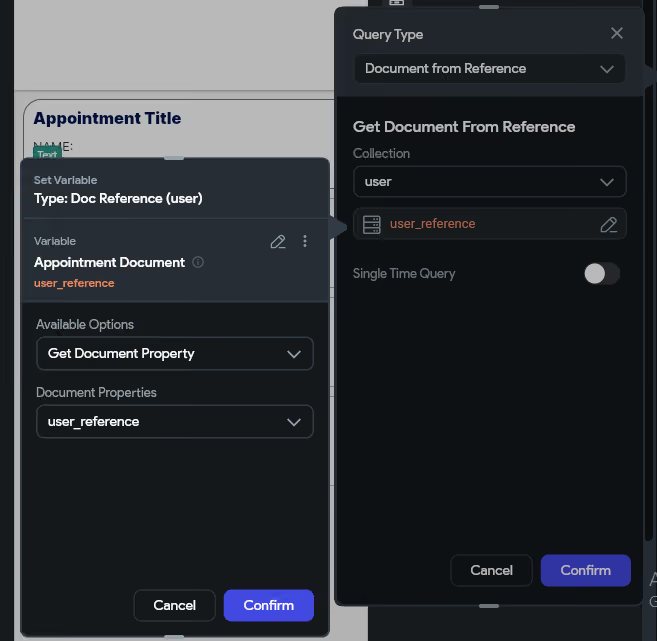
Steps to Documents by Reference: Backend Query > Add query >
Document From Reference >Select the document whose reference is stored >Select the record reference name.
Example of what you created:
User Info Appears Here:
Ali Khan
ali@email.com
03001234567
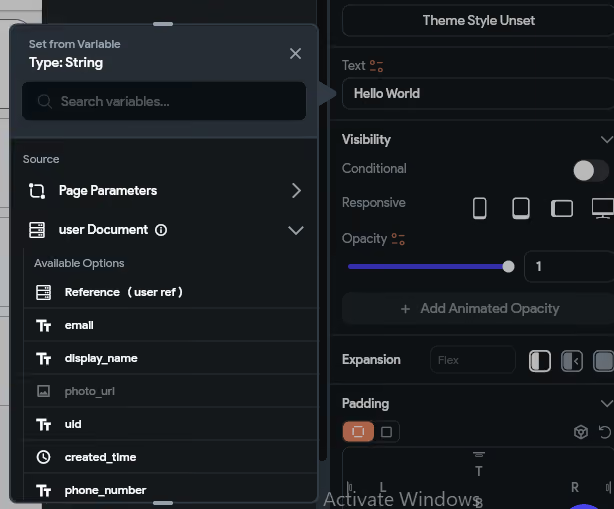
Steps to show data get from Documents by Reference: Add text widget > Set from variable > Select collection > Select field
Best Practices for References and Queries
When working with Firebase relationships in FlutterFlow:
1. Use Document References instead of storing duplicate data.
2. Keep collections focused on a single purpose.
3. Use filter queries to reduce unnecessary database reads.
4. Avoid storing complete user profiles inside related collections.
5. Structure relationships carefully before starting development.
Following these practices improves performance and keeps your Firestore database scalable as your application grows.
Conclusion
Document References are one of the most powerful features of Firebase Firestore in FlutterFlow. They allow developers to create relationships between collections without duplicating data. Combined with filter queries, references make it easy to retrieve only the data needed for a specific user or feature.
By properly structuring relationships and using reference-based queries, you can build cleaner, faster, and more maintainable FlutterFlow applications.
.svg)
.svg)


.avif)
