
We are Official Certified bubble.io & flutterflow App Development partner


Firebase CRUD operations. and pagination implementation,Multiple Deletion
If you've spent any time around app development, you've probably heard the phrase "it's just CRUD" thrown around dismissively as if Create, Read, Update, and Delete were the boring, solved part of the job. In reality, CRUD is where most production apps live or die. The "Create a record" button is easy. The list view that needs to handle 50,000 records without choking, the edit screen that needs to load the right data without flickering, and the admin panel where someone needs to select forty rows and delete them in one go that's where the real engineering happens.
This guide walks through exactly that: building solid Firebase CRUD in FlutterFlow, implementing pagination the right way, and adding multi-select bulk deletion, the kind of feature that separates a portfolio project from something you'd actually ship to production. Along the way, we'll also pull back the curtain on what FlutterFlow is actually doing when you drag a "Backend Query" onto the canvas, because understanding that mental model is what turns "it works on my test data" into "it works at scale."
Why This Matters More Than It Looks Like It Does
Here's a pattern I've seen play out on more teams than I can count. A fresher joins, gets handed a FlutterFlow project, and within a day has a working "Add Product" form and a list that displays everything in a Firestore collection. The demo looks great. The client is happy. Then three weeks later, the collection has 4,000 documents, the list view takes eight seconds to load, every screen re-fetches the entire collection on every rebuild, and there's no way for an admin to clean up duplicate test entries except by tapping "delete" forty times in a row.
None of this is because FlutterFlow is limited it's because CRUD, pagination, and bulk operations are deceptively simple to wire up but easy to wire up wrong. The visual builder will happily let you build something that technically works and silently scales terribly. The goal of this guide is to make sure you understand not just which buttons to click, but why those buttons exist and what's happening underneath because that's the difference between a junior who can follow a tutorial and a developer who can debug a production incident at 11pm.
How FlutterFlow Actually Talks to Firebase
Before touching any CRUD logic, it's worth understanding the architecture, because almost every weird bug a fresher runs into ("why isn't my data showing up?", "why did my security rules break my app?") traces back to a gap in this mental model.
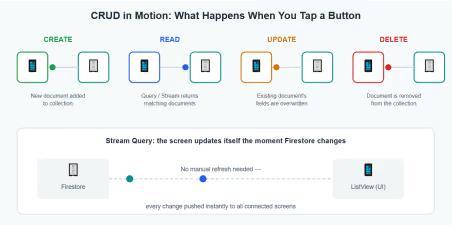
Show Image
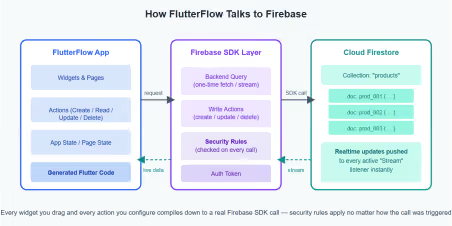
At its core, Firestore is a NoSQL document database organized into collections (like "products" or "orders") containing documents (individual records, each with a unique ID), and each document holds fields (key-value pairs strings, numbers, timestamps, references to other documents, and so on).
FlutterFlow doesn't talk to Firestore through some proprietary middle layer. When you connect a Firebase project, FlutterFlow asks you to define Firestore Collections, essentially a schema that mirrors your actual database structure, field by field, type by type. This schema isn't just documentation; it's what allows the visual builder to generate strongly-typed Dart code. Every "Backend Query," every "Create Document" action, every binding you drag onto a Text widget compiles down to real Firebase SDK calls FirebaseFirestore.instance.collection(...).snapshots(), .add(), .update(), .delete(), and so on.
Two details matter enormously here:
Stream vs. Once. Every query in FlutterFlow has a query type. "Stream" sets up a live listener Firestore pushes updates to your app the instant the underlying data changes, with no manual refresh. "Once" performs a single fetch and stops listening. Streams feel magical (your UI updates itself!) but each active stream is a persistent connection that re-triggers your widget rebuild on every change to the matching documents, even ones the user doesn't care about. Choosing the wrong one is the single most common cause of both "my data won't update" (used Once where you needed Stream) and "my app feels sluggish and burns through reads" (used Stream where Once would do).
Security rules run regardless of what the UI does. FlutterFlow's visual editor will let you configure a query that looks correct, but if your Firestore security rules don't permit that read or write for the currently authenticated user, you'll get a permission-denied error at runtime no warning at design time. I'd strongly recommend writing your security rules before you wire
up your actions, not after, so you're designing against real constraints rather than discovering them later.
With that mental model in place, let's build the actual CRUD flow.
Setting Up Your Firestore Collection in FlutterFlow
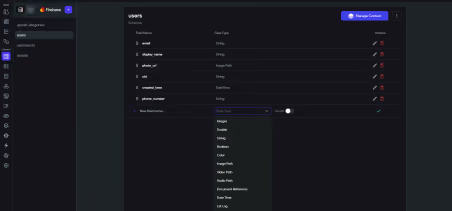
Everything starts in the Firestore Collections section of the Data tab. Here, you define your collection name (e.g., products) and then add fields one by one, matching the types you'll actually store: String, Number, Boolean, Timestamp, Geopoint, or Reference (a pointer to a document in another collection).
A few habits worth building early:
● Add a createdAt field of type Timestamp and let FlutterFlow's "Created Time" default populate it automatically this single field will save you later when you need to sort, filter, or debug "when did this record get added."
● If documents will reference other documents (e.g., an order referencing a customer), use the Reference field type rather than storing the ID as a plain string. This keeps your queries and bindings type-safe and lets FlutterFlow auto-resolve the referenced document's data.
● Decide your document ID strategy upfront. Auto-generated IDs are fine for most collections, but if you'll need to look up a document directly (a user's profile keyed by their UID, for example), use a custom document ID tied to something meaningful.
Create: Turning a Form into a Document
The "Create" operation in FlutterFlow almost always follows the same shape: a form (TextFields, dropdowns, switches, image uploaders) feeding into a Create Document action attached to a button's "on tap" event.
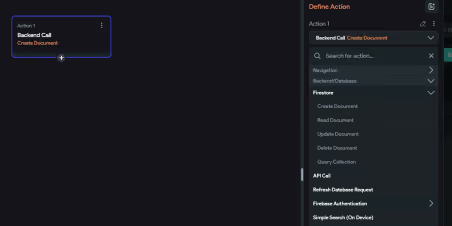
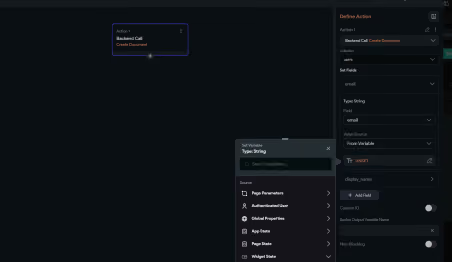
The part that trips people up isn't the action itself it's field mapping. For each field in your Firestore Collection schema, you map it to either a static value, a widget's current value (e.g., the text in a TextField), a variable, or an action output (like the URL returned after an image upload completes). Get this mapping wrong say, leaving a required field unmapped and you'll end up with documents that have missing fields, which then cause null-reference errors the moment something tries to read and display them.
My rule of thumb: after building a Create form, immediately go to the Firestore console and inspect the document that gets created. Don't trust the "success" toast open the actual document and check that every field landed where it should, with the type you expected (a number that accidentally got stored as a string is a classic, silent bug).
Read: Queries, Streams, and Bindings
This is where most of the "magic" of FlutterFlow happens, and it's worth slowing down to understand it properly.
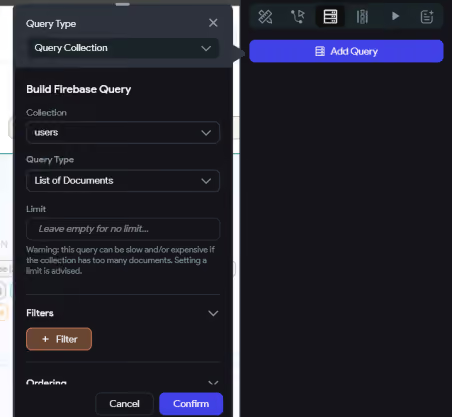
To display a list of products, you'd typically add a Backend Query to your page (a Firestore Query against the products collection), configure any filters (where category == "Electronics"), set an order (orderBy createdAt descending), and choose Stream or Once based on whether this list needs to reflect live changes. That query result then gets bound to a ListView's "Generate dynamic children" setting, which essentially loops over the returned documents and renders one widget per document each child widget receiving that document's data through its own bindings.
A subtlety that catches freshers off guard: a Backend Query at the page level re-runs (or, for streams, stays subscribed) for as long as that page is alive. If you nest queries say, a query per list item to fetch a related document you can easily end up with dozens or hundreds of simultaneous listeners. This is the "N+1 query" problem in a visual disguise, and it's a major source of both slow apps and surprisingly large Firebase bills. Where possible, denormalize: store the data you need to display directly on the parent document (e.g., store the category name alongside the product, not just a reference you have to resolve separately) rather than fetching it via a nested query for every row.
Update: Pre-filling and Partial Writes
An edit screen needs two things: the existing document's data loaded into the form on page load, and an Update Document action that writes changes back.
For the first part, pass the document (or its reference/ID) as a page parameter when navigating to the edit screen, then bind each form field's initial value to the corresponding field on that document. For the second, the Update Document action lets you map fields the same way as Create but critically, Update only writes the fields you explicitly map. Anything you leave unmapped stays untouched in Firestore. This is genuinely useful (you can build a "quick edit" that only touches one field), but it also means a half-configured Update action won't throw an error it'll just silently fail to update the fields you forgot, which can look like a "the save button doesn't work" bug when really it's a "the save button doesn't save everything" bug.
Delete: The Single Item Case
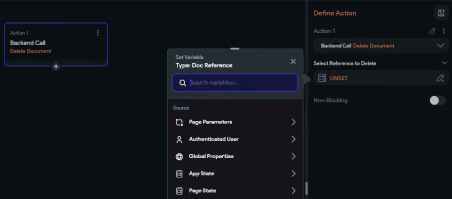
Single-item delete is usually the simplest of the four a Delete Document action wired to a button or, more commonly, a swipe gesture using a Dismissible or Slidable widget.
The one non-negotiable here: always confirm before deleting. Wrap the Delete Document action in a confirmation dialog ("Are you sure you want to delete this item? This cannot be undone."). It's a five-minute addition that prevents the single most common support ticket in any CRUD app: "I accidentally deleted something and there's no undo." If your data is valuable enough, consider a soft-delete pattern instead a boolean isDeleted field that your queries filter out, rather than actually removing the document. It costs a little extra query complexity but buys you the ability to recover from mistakes.
Pagination: Don't Load Everything, Ever
Here's the scenario that exposes whether a CRUD implementation was built for a demo or built to last: what happens when the collection has 10,000 documents?
If your Backend Query has no limit, the answer is "your app tries to load all 10,000 at once" slow initial load, high memory usage, and a Firestore bill that scales with every single page view. Pagination isn't a nice-to-have; it's the difference between an app that works in the demo and one that works in production.
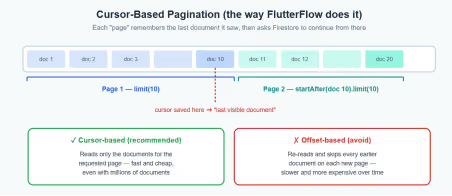
FlutterFlow supports pagination directly on Backend Queries. When you enable pagination on a query bound to a ListView or Grid, FlutterFlow sets an initial page size (say, 20 documents) and automatically wires up "load more" behavior as the user scrolls toward the bottom of the list this is sometimes called infinite scroll. Under the hood, this isn't re-fetching the whole collection and discarding what it doesn't need; it's using cursor-based pagination, where each page query says "give me the next 20 documents after the last document I already have," using Firestore's startAfter() based on the last document's value for whatever field you're ordering by.
This matters because the alternative offset-based pagination ("skip the first 40, then give me 20") doesn't really exist as a cheap operation in Firestore. Simulating it means reading and discarding all the skipped documents on every page, which gets more expensive the deeper a user scrolls. Cursor-based pagination, by contrast, costs roughly the same regardless of how many pages deep you are, because each page only reads the documents it actually displays.
A few practical notes when setting this up:
● Pagination requires a consistent orderBy without one, "the next 20 after this one" isn't well-defined. Make sure your query has an explicit order (commonly by createdAt).
● Choose a page size that balances perceived speed with read cost. 15–25 items is a reasonable default for most mobile lists; you can go higher for dense desktop tables. ● If your list also has filters (a search bar, category dropdown), make sure changing the filter resets the pagination state otherwise users will see a mix of old and new results as they scroll.
● Test pagination with realistic data volume. A list of 8 items will never reveal a pagination bug. Seed your dev Firestore with a few hundred documents before you sign off on this feature.
Multiple Deletion: Building a Real Bulk-Action Flow
This is the feature that genuinely separates a basic CRUD app from an admin-grade one, and it's almost never covered in beginner tutorials which is exactly why it's worth getting right.
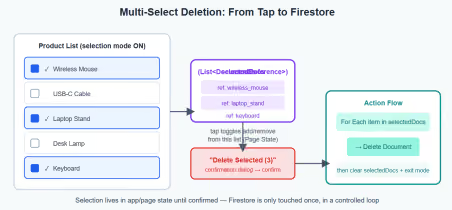
The pattern has three moving parts:
1. A selection state. Add a variable typically in Page State, or App State if selection needs to persist across navigation that holds a list of selected document references (or IDs): selectedItems: List<DocumentReference>. Alongside it, a boolean like isSelectionMode controls whether the UI shows checkboxes at all.
2. Toggle logic on each list item. On long-press (to enter selection mode) or on tap (once selection mode is active), run a conditional action: if the item's reference is already in selectedItems, remove it; otherwise, add it. Bind each item's checkbox/highlight state to "is this item's reference in selectedItems?" so the UI reflects the current selection in real time.
3. The bulk delete action itself. On your "Delete Selected (N)" button after a confirmation dialog that shows the count, because deleting 12 items by accident is twelve times worse than deleting one run a For Each / Loop action that iterates over selectedItems, and inside the loop, calls Delete Document on the current item's reference. Once the loop finishes, clear selectedItems and set isSelectionMode back to false.
One honest caveat worth knowing as you grow into more advanced work: this loop pattern issues N separate delete calls rather than a single atomic batch write. For most apps, this is completely fine Firestore handles it well, and the user sees a brief loading state while it processes. But if you ever need true atomicity (all-or-nothing deletion of, say, 500 related documents as a single transaction), that's a job for a Cloud Function triggered via a Custom Action, using the Admin SDK's WriteBatch worth knowing the limitation exists, even if you won't need it on day one.
Best Practices: What I'd Tell Any Fresher Joining My Team
A few habits that consistently separate solid FlutterFlow builds from fragile ones:
● Match your security rules to your actual queries, not the other way around. Write the rules first, test the query against them in the Firestore Rules Playground, then wire up the FlutterFlow action. Debugging permission errors after the fact, with no design-time warning, is one of the most time-consuming traps in this stack.
● Default to "Once" queries; reserve "Stream" for data that genuinely needs to be live. A product catalog rarely needs a live listener. A chat screen does. Be deliberate about which is which every unnecessary stream is a permanent open connection and a steady drip of reads.
● Denormalize to avoid nested per-row queries. If a list item needs to show a category name, store that name on the document itself when it's created, rather than resolving a reference for every visible row.
● Always paginate, even if "it's fine for now." The cost of adding pagination from day one is small. The cost of retrofitting it onto a screen that's already shipped, with users actively scrolling through it, is much larger.
● Confirm before every destructive action and show the count for bulk operations. "Delete 3 items?" is a sentence that has saved more careers than people realize.
● Consider soft deletes for anything a user would be upset to lose permanently. A simple isDeleted flag, filtered out in queries, gives you a recovery path that a hard delete never will.
● Test every list-based feature with realistic data volume, not the five test records you created while building it. Pagination bugs, performance issues, and N+1 query problems are all invisible at small scale and obvious at real scale.
● Inspect the Firestore console after every write action, especially while you're still learning. The fastest way to build intuition for what FlutterFlow's actions actually do is to watch the database change in real time as you tap buttons.
Wrapping Up
CRUD, pagination, and bulk actions look like "the basics" and in a sense, they are. But the basics, done with an understanding of what's actually happening between your app and Firestore, are what let an app survive contact with real users and real data volumes. The visual builder will let you skip past all of this and still get something that runs. Whether it holds up depends on whether you understood the architecture underneath it the whole time.
If there's one thing to take away from this guide, it's this: every time you drag on a Backend Query, a Create/Update/Delete action, or a pagination toggle, ask yourself what the equivalent Firestore SDK call looks like, and what happens when this runs against a collection with ten thousand documents instead of ten. That single habit is what turns "I followed the tutorial" into "I understand the system" and that's the gap between a fresher and a senior developer.
.svg)
.svg)


.avif)
