

How to Structure Firebase Database for FlutterFlow Application
What is Firebase Database?
Firebase Database is Google's cloud storage system where your app stores all its data. Think of it like a digital filing cabinet or warehouse for your app.
The Three Layers:
- Firebase = The entire cloud system (made by Google)
- Firestore = The actual database inside Firebase (where data lives)
- Collections & Documents = How data is organized inside Firestore
Real-World Analogy: Like organizing a library:
- Library = Firebase (entire system)
- Sections = Collections (like "Fiction", "History")
- Individual Books = Documents (like one specific book)
- Content in book = Fields (the actual information)
Real-World Examples
Example 1: Doctor's Appointment Booking App
When you book a doctor's appointment through an app, here's how the data is organized:
Collection: Appointments
Document: Appointment #1
Fields: appointment_time (3:00 PM), patient_name (Ahmed), doctor_name (Dr. Ali), status (Completed), notes (Regular checkup)
Example 2: Online Shopping App
When you shop online, your data is split across multiple collections:
Users Collection - stores customer information (name, email, address)
Products Collection - stores clothing details (size, color, price)
Orders Collection - stores purchase records (what was bought, when, by whom)
Payments Collection - stores payment details (amount, date, status)
When building an application in FlutterFlow, one of the most important steps is designing a proper Firebase database structure. A well-organized database helps your app perform better, keeps data management simple, and makes it easier to build features like user profiles, appointments, orders, chats, or any other dynamic functionality.
FlutterFlow uses Firebase Firestore as a backend database. Unlike traditional SQL databases that use tables and rows, Firestore uses a collection-based structure.
Why Do You Need a Database?
Problems Without a Database:
- When user creates profile → where does it go?
- When user books appointment → how is it saved?
- When user places order → where is it stored?
- Without database = data is lost
Problems Solved by Database:
- User data stays safe in cloud (not on phone)
- User can access their data anytime
- Multiple users can have their own data
- App can load data quickly
- Backup of all information exists
Why Firebase Specifically?
- Made by Google (safe & reliable)
- Easy to use with FlutterFlow
- Secure (protects user data)
- Scalable (grows with your app)
Understanding Firebase Firestore Structure
A collection works like a table in a traditional database. A document works like a record or row, and fields store the actual data.In Firebase Firestore, the structure is divided into three main parts:
- Collection
- Document
- Fields
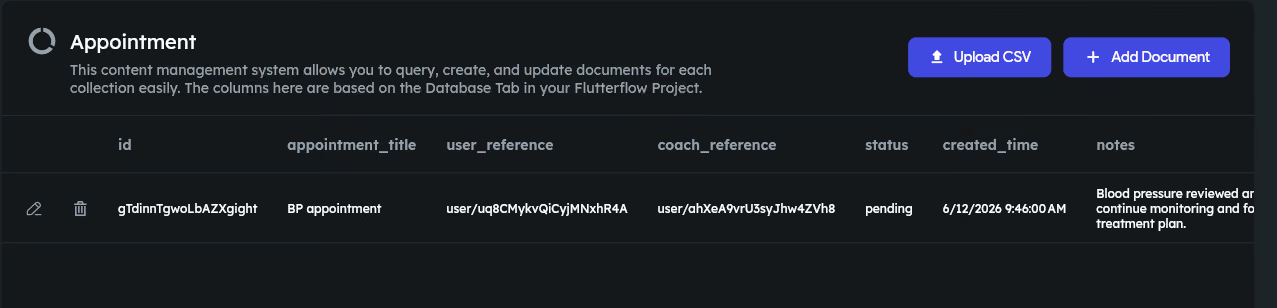
For example, if you are creating an Appointment booking application, you can create a collection called:
“Appointments”
Inside this collection, every appointment will have its own document containing different fields.
Example fields:
- appointment_title (String)
- user_reference (Document reference (user))
- coach_reference (Document reference (user))
- status (String/Enum)
- notes (String)
- created_time (DateTime)
- update_time (DateTime)
This structure allows FlutterFlow widgets and actions to easily read and display appointment data.
Important: Choosing the Right Data Types
- Just like you wouldn't put a book in the shoes section, you need to pick the right data type for each field. Here are the most common:
- Text/String - for names, emails, descriptions (Example: 'Ali', 'hello@email.com')
- Number - for quantities, prices, ages (Example: 1500, 25, 99.99)
- DateTime - for dates and times (Example: March 15, 2024 at 3:00 PM)
- Boolean - for yes/no questions (Example: is_premium=true, is_verified=false)
- Array/List - for multiple values (Example: tags=['fitness', 'health', 'gym'])
- Document Reference - to connect one collection to another (Example: linking orders to users)
Creating Collections in FlutterFlow
To create a Firebase database structure in FlutterFlow:
- Open your FlutterFlow project.
- Go to the Firebase Setup section.
- Open Firestore Database.
- Click on Create Collection.
- Add the required fields with their correct data types.
Choosing the correct data type is important. For example:
- Text data should use String.
- Numbers such as prices should use Double or Integer.
- Multiple values should use List.
- Connections between collections should use Document Reference.
Using Document References for Relationships
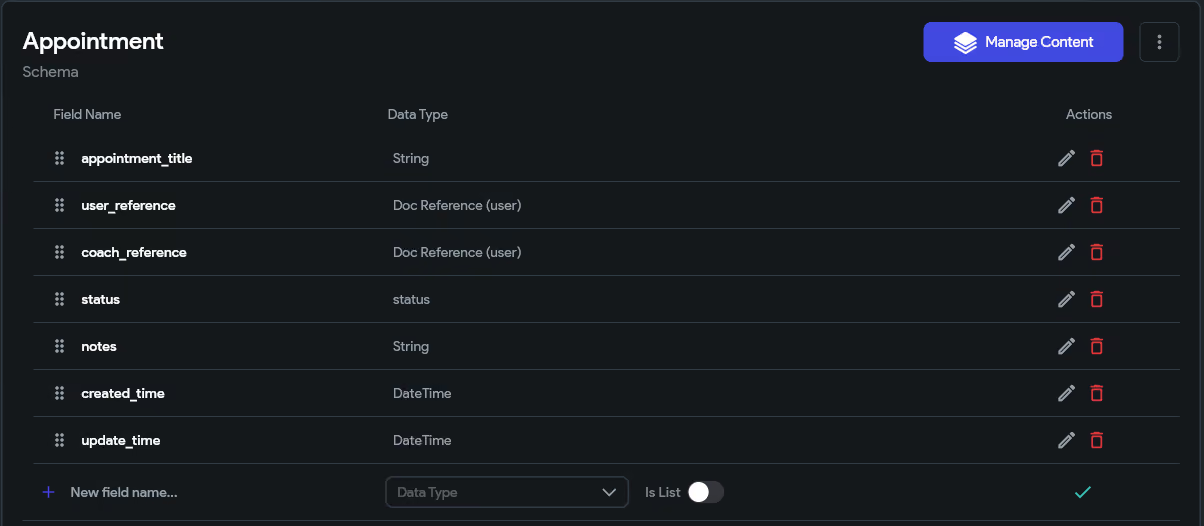
In many applications, different collections need to connect with each other. Firebase handles these connections using Document References.
For example, an appointment may belong to a specific user and coach.
Database structure:
users
→ user document
→ name, email, profile image
appointments
→ appointment document
→ user_reference
→ coach_reference
The appointment collection does not need to store all user information again. Instead, it stores a reference to the user document.
Steps to add Document reference: Open firestore > Select/ Create collection > Add field > Add name of field > Set type of data as document from reference > Set the target collection > Save
This keeps the database clean and prevents duplicate data.

Planning Database Structure Before Development
Before creating collections, it is recommended to plan your database according to your application requirements.
For example, an e-commerce app may need:
- users collection
- products collection
- orders collection
- payments collection
A booking app may need:
- users collection
- coaches collection
- appointments collection
- schedules collection
A good database structure should be scalable so new features can be added later without changing the entire system.
Best Practices for Firebase Database in FlutterFlow
Some important practices include:
- Use meaningful collection and field names.
- Avoid storing unnecessary duplicate information.
- Use Document References for connected data.
- Apply proper Firebase security rules.
- Select the correct data type for every field.
- Keep collections organized according to app functionality.
Conclusion
Structuring a Firebase database correctly is a key part of building a successful FlutterFlow application. By understanding collections, documents, fields, and references, developers can create applications that are easier to manage and scale.
FlutterFlow makes Firebase integration simple by providing visual tools for creating collections and connecting data. With a planned database structure, you can build powerful applications with better performance and cleaner data management.
Heading 1
Heading 2
Heading 3
Heading 4
Heading 5
Heading 6
Lorem ipsum dolor sit amet, consectetur adipiscing elit, sed do eiusmod tempor incididunt ut labore et dolore magna aliqua. Ut enim ad minim veniam, quis nostrud exercitation ullamco laboris nisi ut aliquip ex ea commodo consequat. Duis aute irure dolor in reprehenderit in voluptate velit esse cillum dolore eu fugiat nulla pariatur.
Block quote
Ordered list
- Item 1
- Item 2
- Item 3
Unordered list
- Item A
- Item B
- Item C
Bold text
Emphasis
Superscript
Subscript
.avif)


.avif)


