


Umar Amjad
July 25, 2026
FlutterFlow Project Collaboration Guide: Team Sharing, Roles & Ownership
A Guide to Collaborating on FlutterFlow Projects
Welcome to the team! In FlutterFlow, sharing your work and building apps collectively is seamless. This guide outlines how project sharing works, how to invite external users, how to hand over project ownership, and how real-time teamwork functions.
1. What is Project Collaboration?
To effectively collaborate, you need to understand the structural types of projects, external access options, and visibility tools available in FlutterFlow:
- Team Projects: Open workspaces accessible to everyone in your organization. All members automatically join as Editors, though they can be manually downgraded to Viewers.
- Restricted Team Projects: Private workspaces hidden from the rest of the organization until specific team members are manually selected and added.
- Personal Projects: Private, isolated workspaces dedicated solely to you. Your editing capabilities depend entirely on your personal subscription plan.
- Collaborator Pass: A paid add-on that grants an external user (like a contractor or client) full Editor access to a specific project within your team workspace.
- Project Activity Log: A running history of edits that tracks who made what changes over time, providing visibility into overall project progress.
2. Why use FlutterFlow Collaboration Features?
Utilizing these collaboration frameworks provides the control and security necessary for professional app development:
- Security & IP Protection: By using Restricted Team Projects, you ensure sensitive or unannounced client projects remain invisible to unauthorized internal staff.
- Cost Efficiency: Read-Only access is free, allowing you to loop in unlimited clients for feedback without inflating your software bill.
- Seamless Handovers: Native ownership transfers allow you to seamlessly hand off a completed app directly to a client's corporate FlutterFlow account.
- Accountability: The Project Activity Log removes the guesswork from team management, showing you exactly who modified the app and when.
3. How to Manage Workspace Collaboration
Sharing & Managing Access
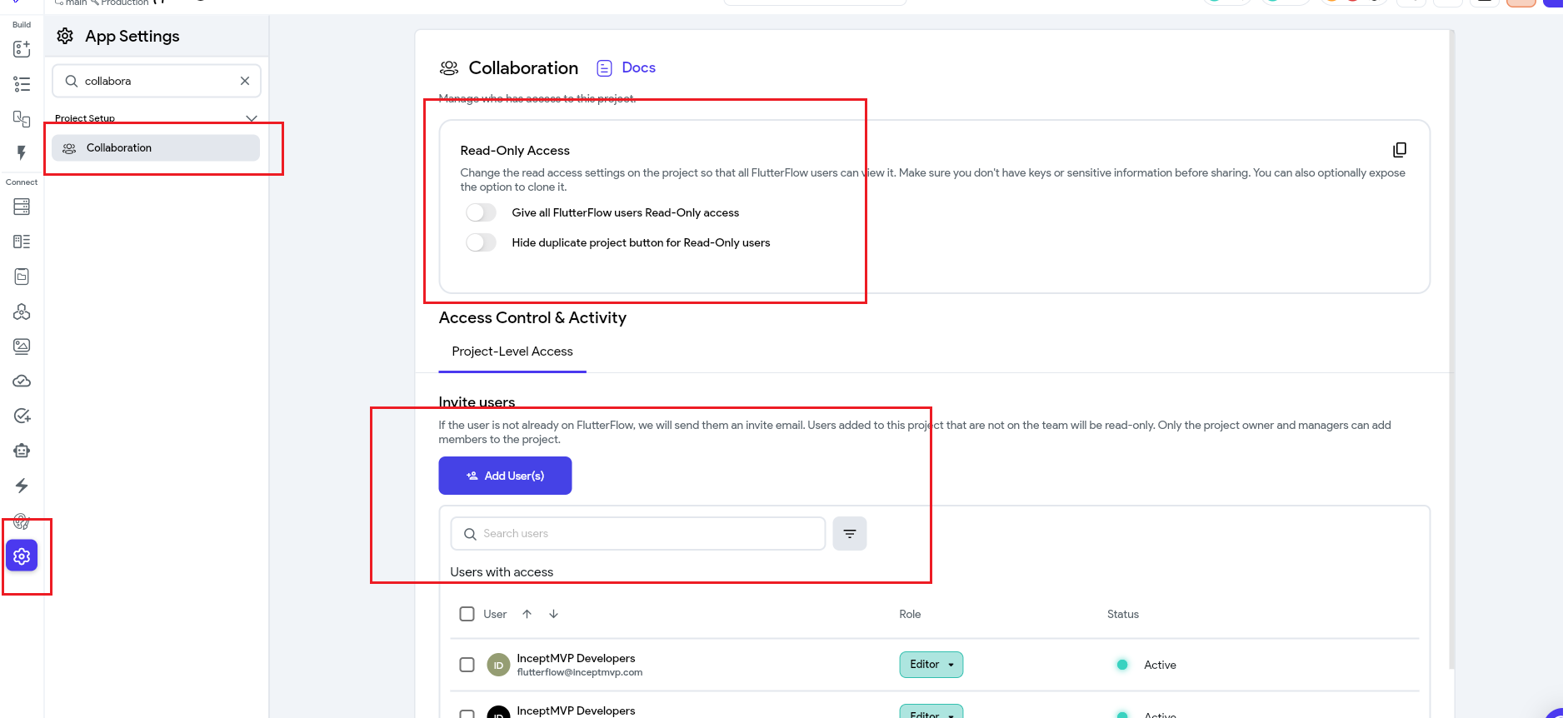
- Internal Sharing: Navigate to your project's Collaboration settings and utilize the Share with team dropdown menu to toggle between Team, Restricted, or Personal.
- Note: Team sharing features require a Growth plan or higher.
- Note: The designated Team Owner always maintains full administrative control over every project, regardless of who originally created it.
- External Sharing: Invite external stakeholders via the email invite field.
- For Viewers: Type their email and assign "Read Only".
- For External Editors: The Team Owner must purchase a Collaborator Pass. The recipient must already have an active paid FlutterFlow plan (Basic, Growth, or Business) and verify their email to clear their "Pending" status.
- Note: "Library" projects cannot be converted into Restricted team projects.
Transferring Project Ownership
When a project is fully completed and ready for final offboarding:
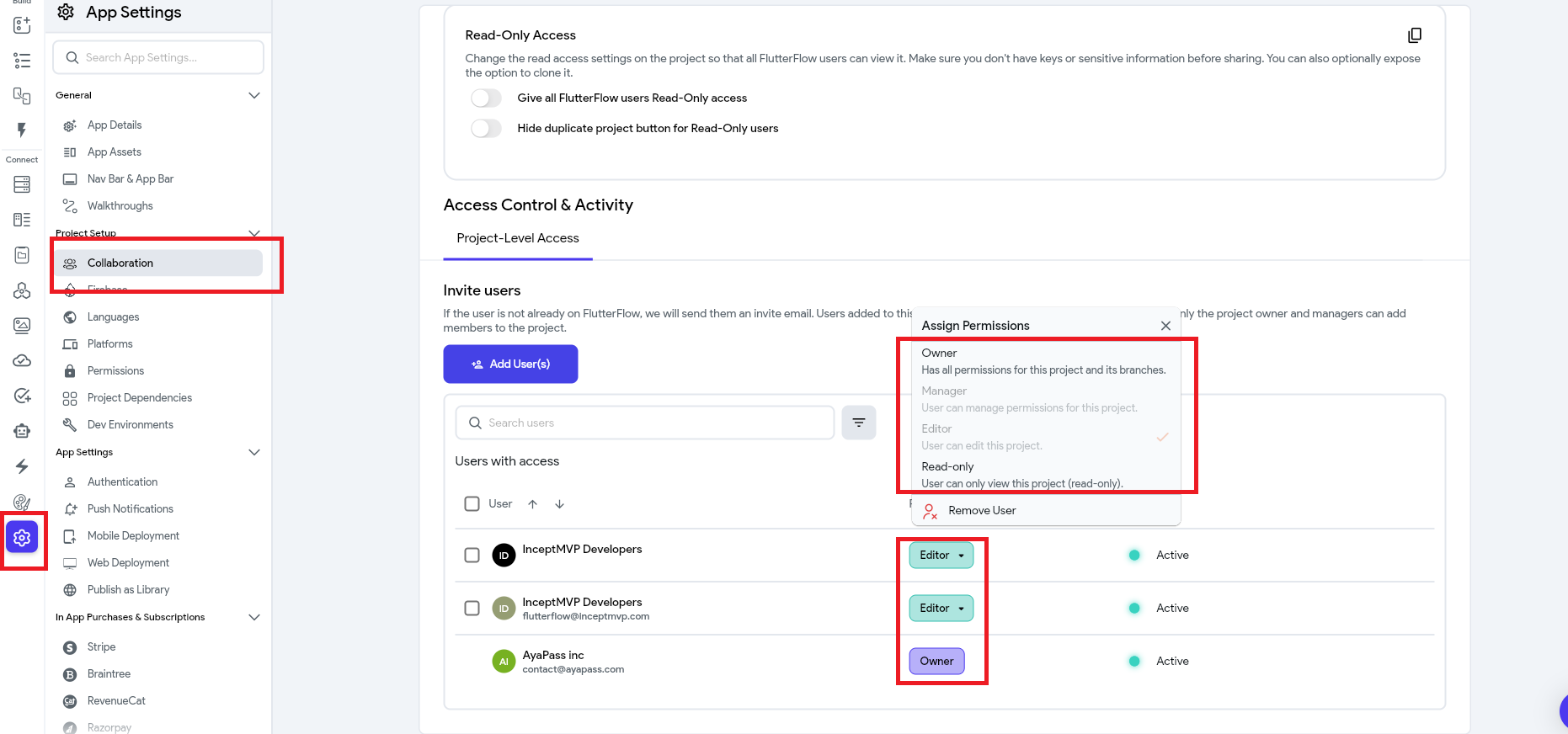
- Navigate to Settings & Integrations > Project Setup > Collaboration > Project-Level Access.
- Locate the recipient's name, click their current role dropdown, and select Owner.
- ⚠️ Warning: This action is immediate and cannot be undone. You will instantly lose control of the project. The recipient must have an active paid plan to accept ownership.
Real-Time Live Development
- Co-Editing: If your team is on a Growth plan or higher, multiple developers can build on the exact same page simultaneously. You will see live mouse cursors and modifications in real time without workspace interruption.
- Reviewing History: To audit project history, access the Project Activity Log.
- Note: This history tracking is an exclusive premium feature available only to Enterprise workspaces.
FAQs
1. What is project collaboration in FlutterFlow?
Project collaboration allows multiple people to work on the same FlutterFlow project using shared workspaces, roles, and permissions.
2. What is the difference between Team Projects and Restricted Team Projects?
Team Projects are accessible to everyone in your workspace, while Restricted Team Projects are only visible to members you specifically invite.
3. Can I invite clients or freelancers to my FlutterFlow project?
Yes. You can invite clients as Viewers or give external developers editing access using a Collaborator Pass.
4. What is a Collaborator Pass in FlutterFlow?
A Collaborator Pass is a paid add-on that allows an external user to edit a specific FlutterFlow project within your team workspace.
5. Can I transfer ownership of a FlutterFlow project?
Yes. You can transfer project ownership to another eligible user through the Collaboration settings. Once transferred, the new owner has full administrative control.
6. Does FlutterFlow support real-time collaboration?
Yes. On supported plans, multiple developers can edit the same project simultaneously and see each other's changes in real time.
7. What roles are available in FlutterFlow collaboration?
FlutterFlow supports Viewer, Editor, External Editor, and Owner roles, each with different levels of access and permissions.
8. Can I track changes made by team members?
Yes. FlutterFlow provides a Project Activity Log that records changes and shows who made them, depending on your workspace plan.
9. Are Viewer accounts free in FlutterFlow?
Yes. Viewer access is available without additional cost, making it easy to share projects with clients and stakeholders for review.
10. Which FlutterFlow plan is best for team collaboration?
Growth and Enterprise plans provide the most comprehensive collaboration features, including team workspaces, live co-editing, and advanced project management tools.
.svg)
.svg)


.avif)
