


Screen-to-Screen Data Passing
Page Parameters • App State • Temp Data
1. Temp Data:
Temp State (also called Local State or Widget State) is a variable that exists only within a specific widget, component, or page. It is not accessible from other screens and disappears when the widget is removed from the UI.
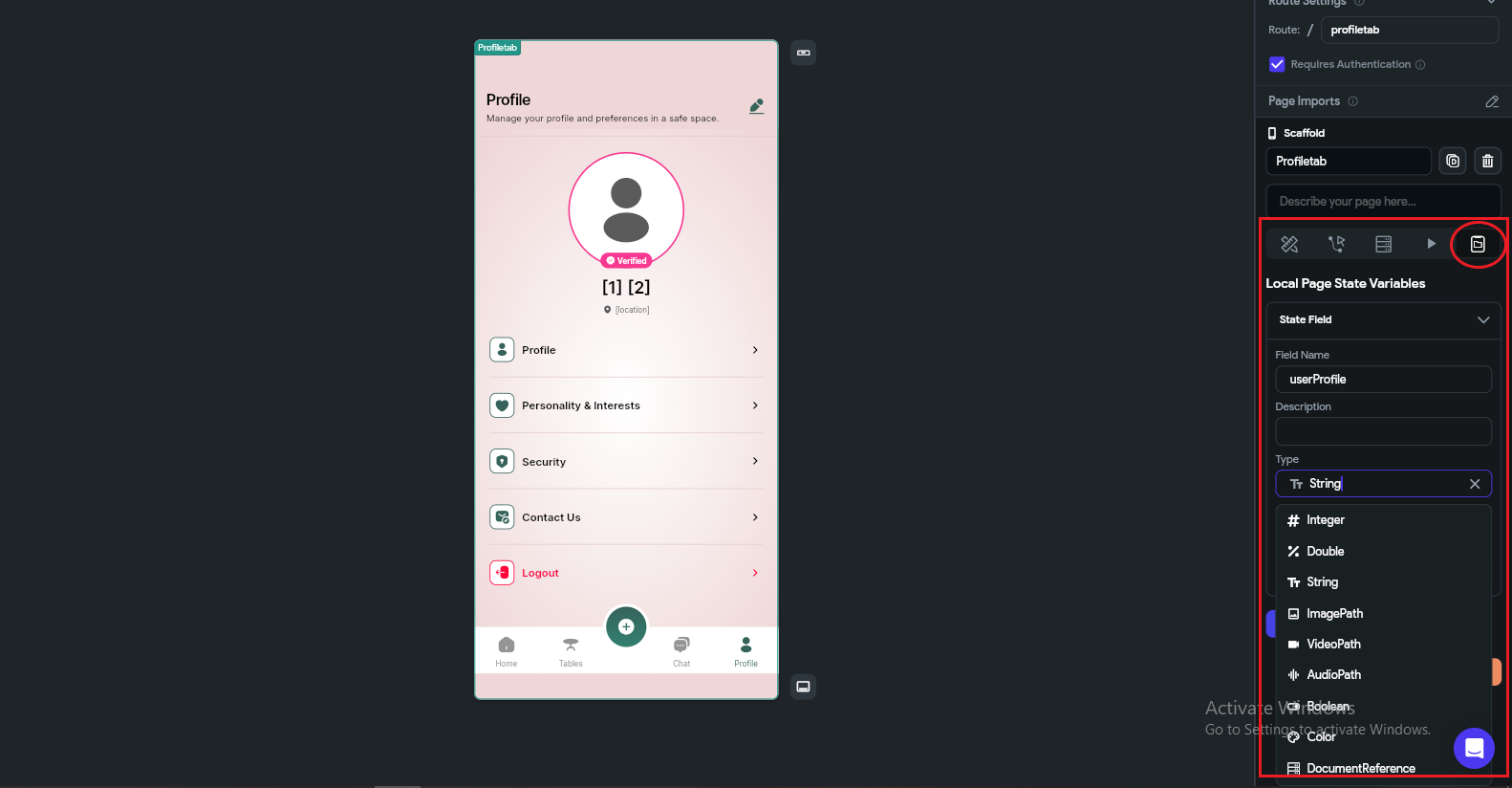
- Creating Page and Component State
To create a Local Variable (Page State / Component State) in FlutterFlow, first you need to open the specific page or component where you want to use that variable. For example, if you want to store data for a profile page, open that page in the FlutterFlow editor.
Once the page is open, go to the right side panel. There you will see different tabs like Page Parameters, Backend Query, and State Management. Click on “Page State” (or “Component State” if you are inside a component).
Now click on the “Add Field” button. This is where you create your local variable.
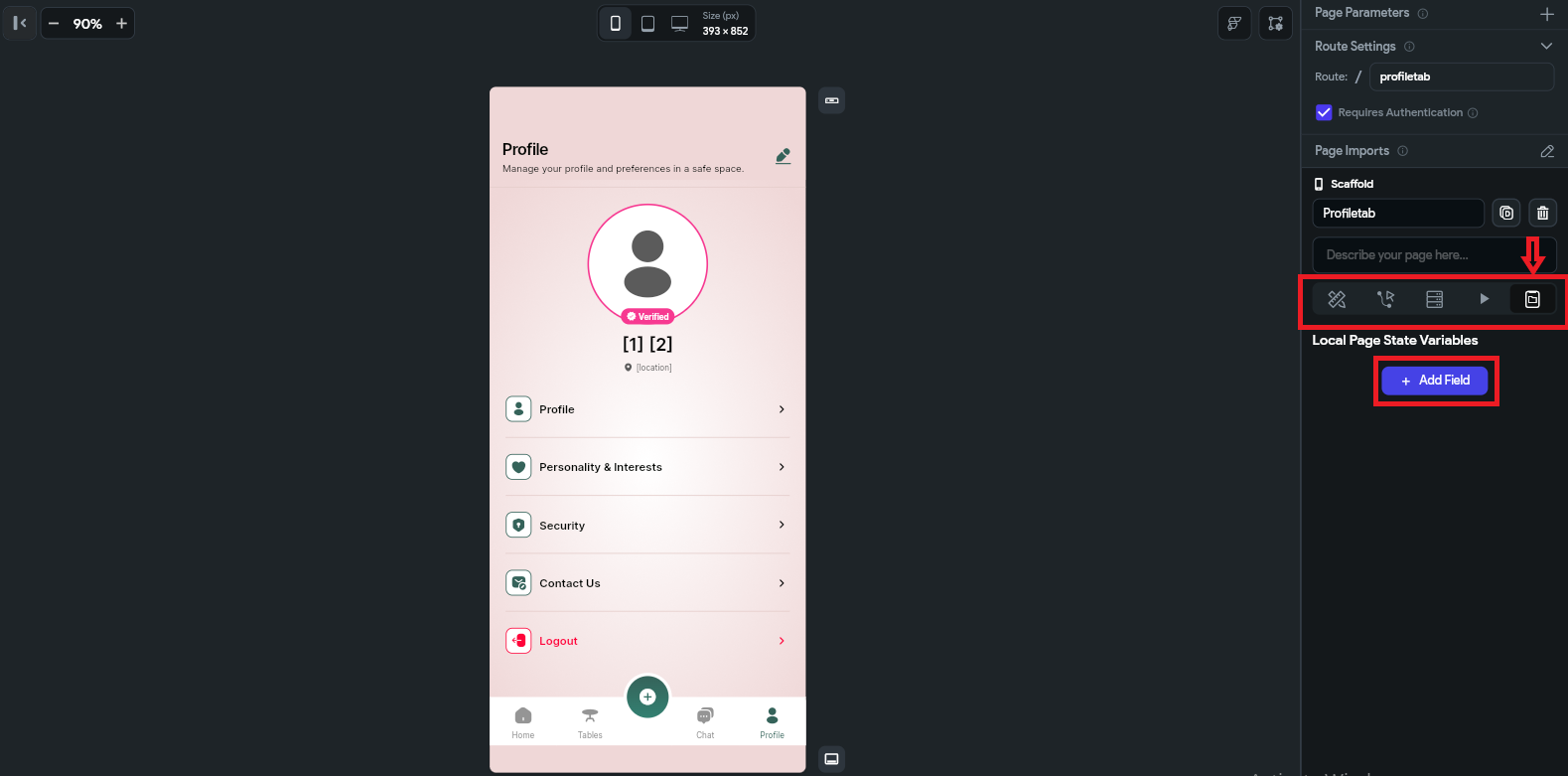
After clicking, a form will appear with multiple options:
- Name → This is the variable name, for example userName or isLoading.
- Description → A short explanation for developers so they understand what this variable is used for.
- Type → This defines what kind of data the variable will store.
Available Data Types:
- String → Used for text values like "Jamal".
- Integer → Used for whole numbers like 25.
- Double → Used for decimal values like 99.5.
- Boolean → Used for true/false values like isLoggedIn = true.
- Document → Stores an entire Firestore document.
- Document Reference → Stores only the reference/path of a document.
- Image Path → Stores a locally selected image path.
- Uploaded File → Stores file or uploaded image URL.
Additional Options:
- isList → If enabled, the variable will store multiple values like a list (e.g. list of strings or documents).
- Nullable → Allows the variable to start with a null value when the page loads.
- Default Value → Sets an initial value when the variable is created.
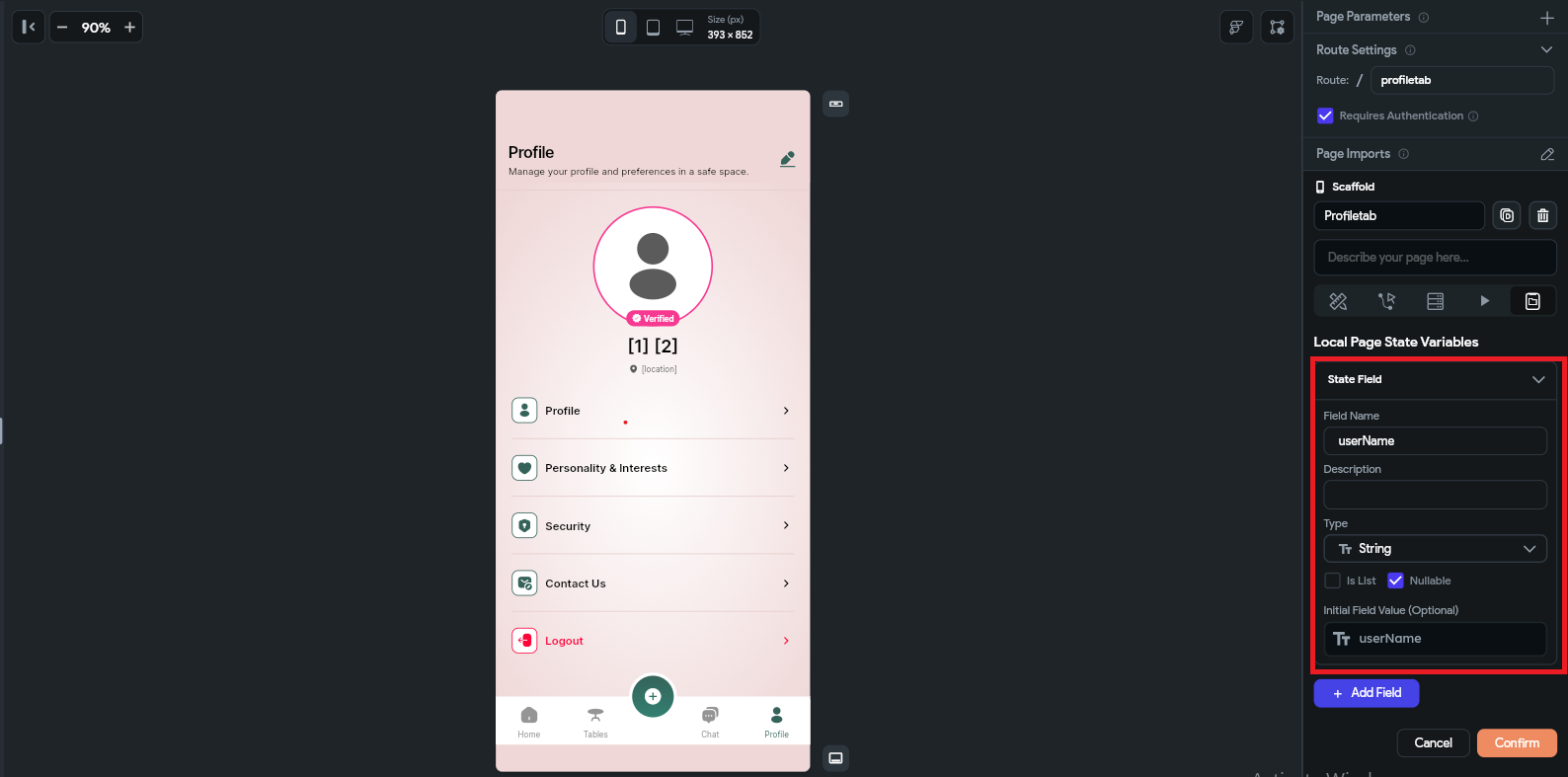
This is how you create and configure local variables in FlutterFlow for a specific page or component. By following these steps, your page or component state will be successfully created and ready to use in your application. You can also create multiple states within the same page or component to manage different types of data, such as loading states, user input values, API responses, or UI conditions, which helps in building more dynamic and interactive screens.
Limitations of Page & Component State
However, it is important to use page or component states carefully. These variables are temporary and only exist within the specific page or component, meaning they reset when the page is refreshed or the user navigates away. Also, avoid creating unnecessary or too many state variables, as it can make the project harder to manage and may affect performance and readability of your app logic.
When defining variables, always make sure the name is clear, meaningful, and easy to understand for other developers. For example, use names like isLoading, userName, or selectedIndex instead of unclear names like var1 or data. The variable type should also match its purpose, such as using Boolean for true/false conditions, String for text, and Integer or Double for numbers. Keeping proper naming conventions and correct data types in mind will make your app structure clean, scalable, and easier to debug in the future.
2. App Data
App State is a powerful feature used to manage global data across the entire application. Once an App State variable is created, it can be accessed and updated from any screen, widget, or action without needing to pass data manually between pages. This makes it very useful for handling shared values like theme setting and cart items.
App State is typically updated through actions such as button clicks, API responses, authentication events, or navigation triggers. After updating, the value becomes immediately available throughout the app, allowing real-time UI updates and dynamic behavior across multiple screens.
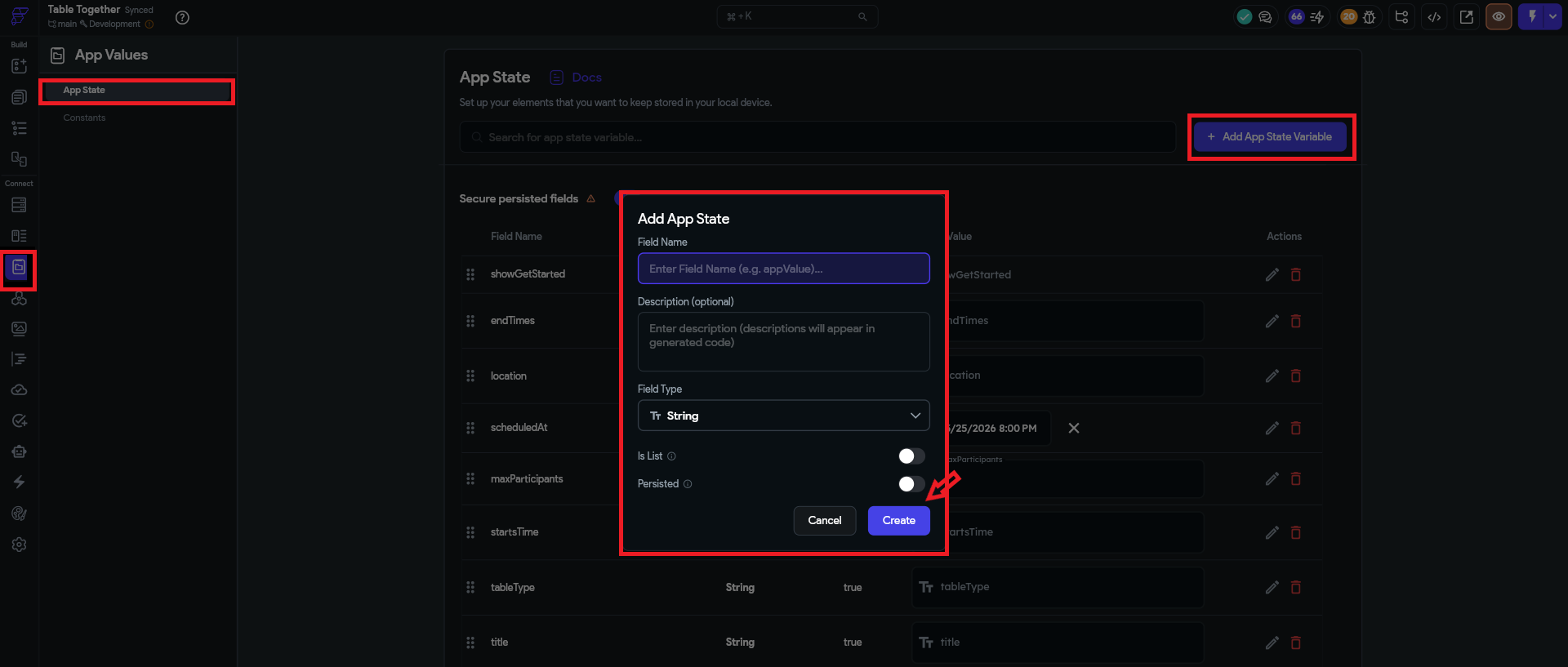
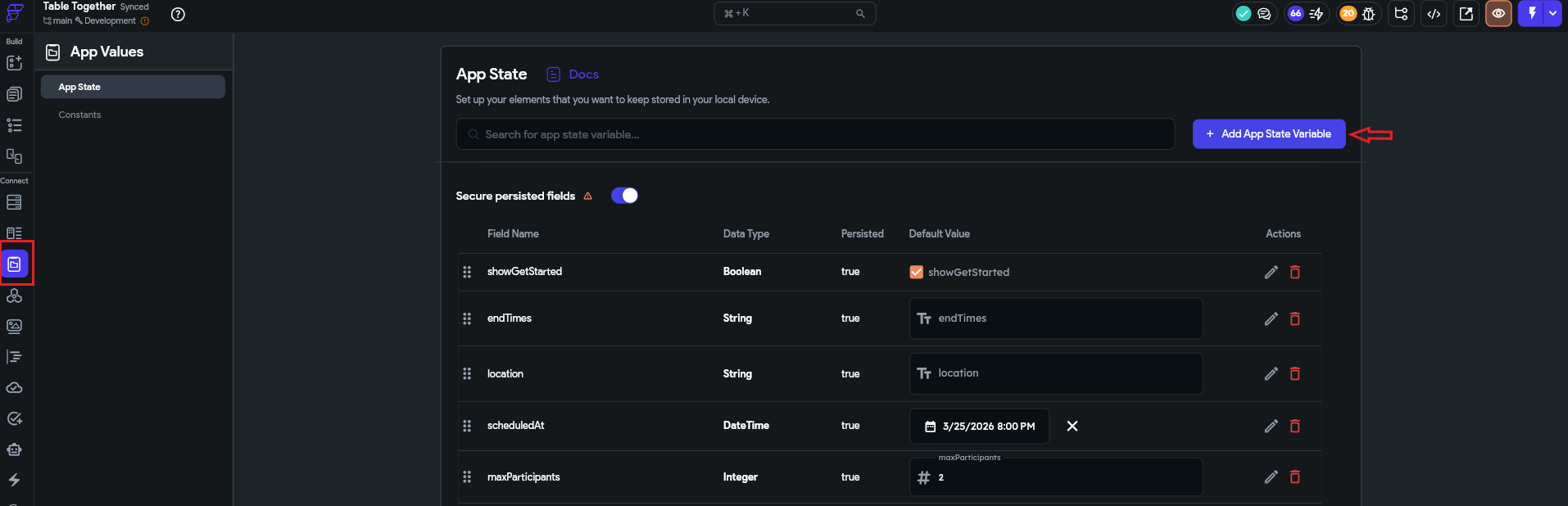
How to Create an App State Variable
- Navigate to App State from the left sidebar.
- Click the "Add Field" button.
- Then fill in the required fields:
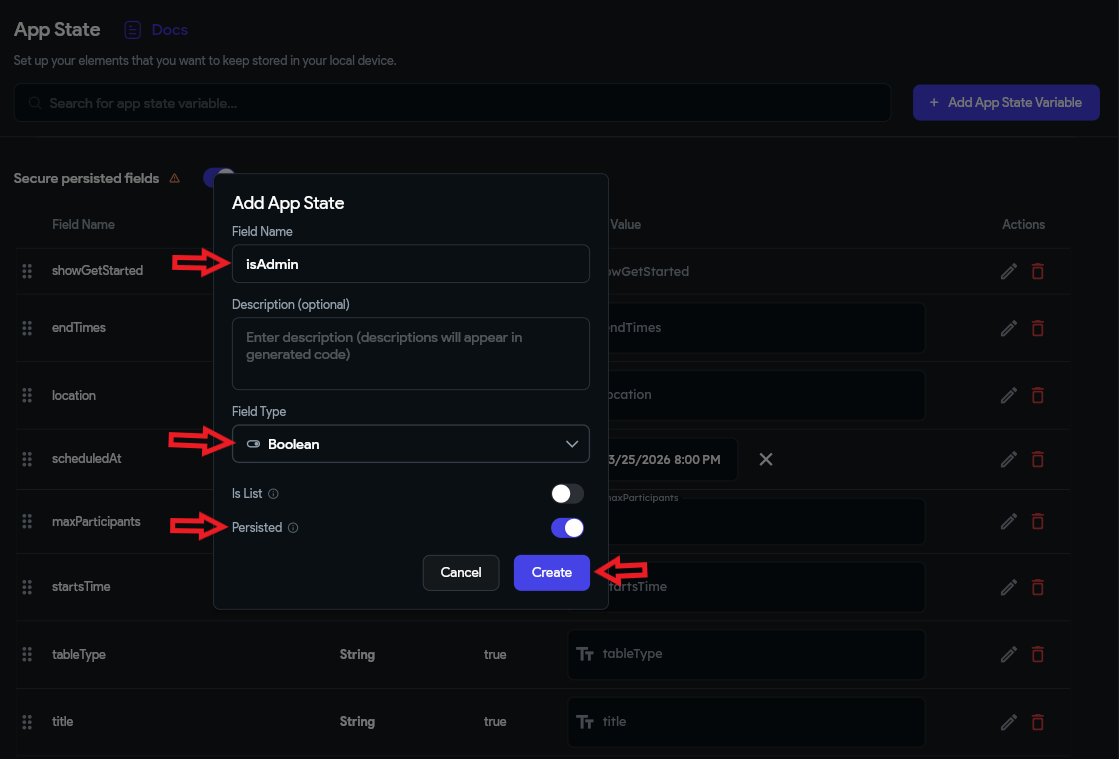
- Name – Assign a name to the variable, for example: isAdmin, userRole, or cartCount.
- Description – A short explanation of what the variable is used for.
- Type – Select the appropriate data type for the variable.
Available Data Types
- String – Stores text values, e.g., "Jamal".
- Integer – Stores whole numbers, e.g., 36.
- Double – Stores decimal values, e.g., 85.2.
- Boolean – Stores true or false.
- Document – Stores Firestore document data.
- Document Reference – Stores a Firestore document reference.
- Image Path – Stores the local path of an image.
- Uploaded File – Stores uploaded file information or URLs.
Additional Options
- isList – Converts the variable into an array/list.
Example: List of Strings, List of Documents, etc. - Persisted – If enabled, the value is saved locally on the device and remains available even after the app is closed and reopened.
- Nullable – Allows the variable to hold a null value when the app starts.
- Default Value – Sets the initial value when the application loads.
Usage of App State
App State is commonly used for:
- Handling theme settings (dark/light mode)
- Storing temporary data like cart items or filters
- Controlling UI visibility and conditions across screens
Limitations of App State
Although App State is very useful, it has some limitations. It is mainly designed for temporary or session-based data, so if the app is restarted and the variable is not marked as Persisted, the data will be lost. Overusing App State for large or complex data structures can also make the app harder to manage and may impact performance.
Another important limitation is that App State is not a replacement for a database. It should not be used to store critical or permanent data like user records, transactions, or sensitive information. Instead, it should be used only for UI-level state management and temporary data handling.
3. Screen to Screen Data Passing
Page Parameters are variables that you define on a screen (page) and pass values into when navigating to that screen. They work like function arguments — when you open (navigate to) a screen, you send the required data with it so the next screen can use it.
Note: Page Parameters only exist for the lifetime of that screen. When the user leaves the screen, the data is automatically removed.
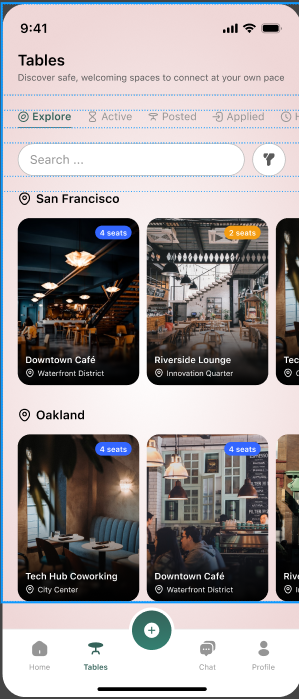
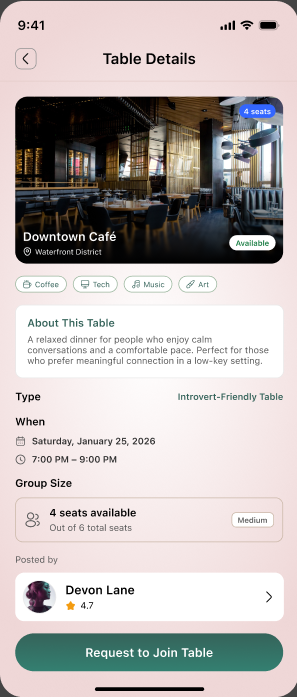
SCREEN (1) SCREEN (2)
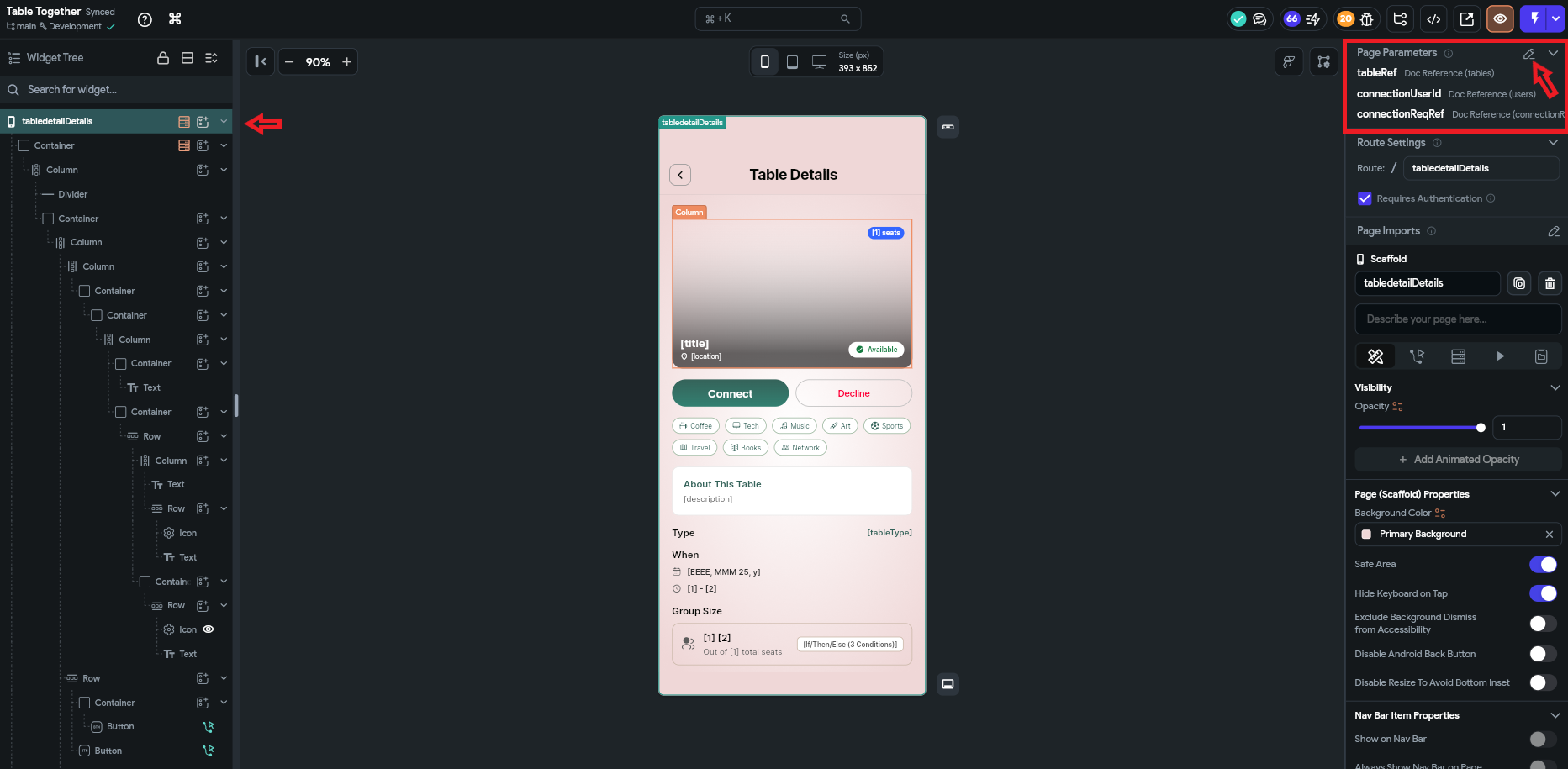
Step 1: Create Page Parameters on Screen 2 (Receiver Screen)
First, open the screen where you want to receive the data (Screen 2).
Then follow these steps:
- Open Screen 2 (Destination Page) in FlutterFlow.
- Go to the right-side panel.
- Click on Page Settings.
- Find the “Parameters” section.
- Click “Add Parameter”.
Then
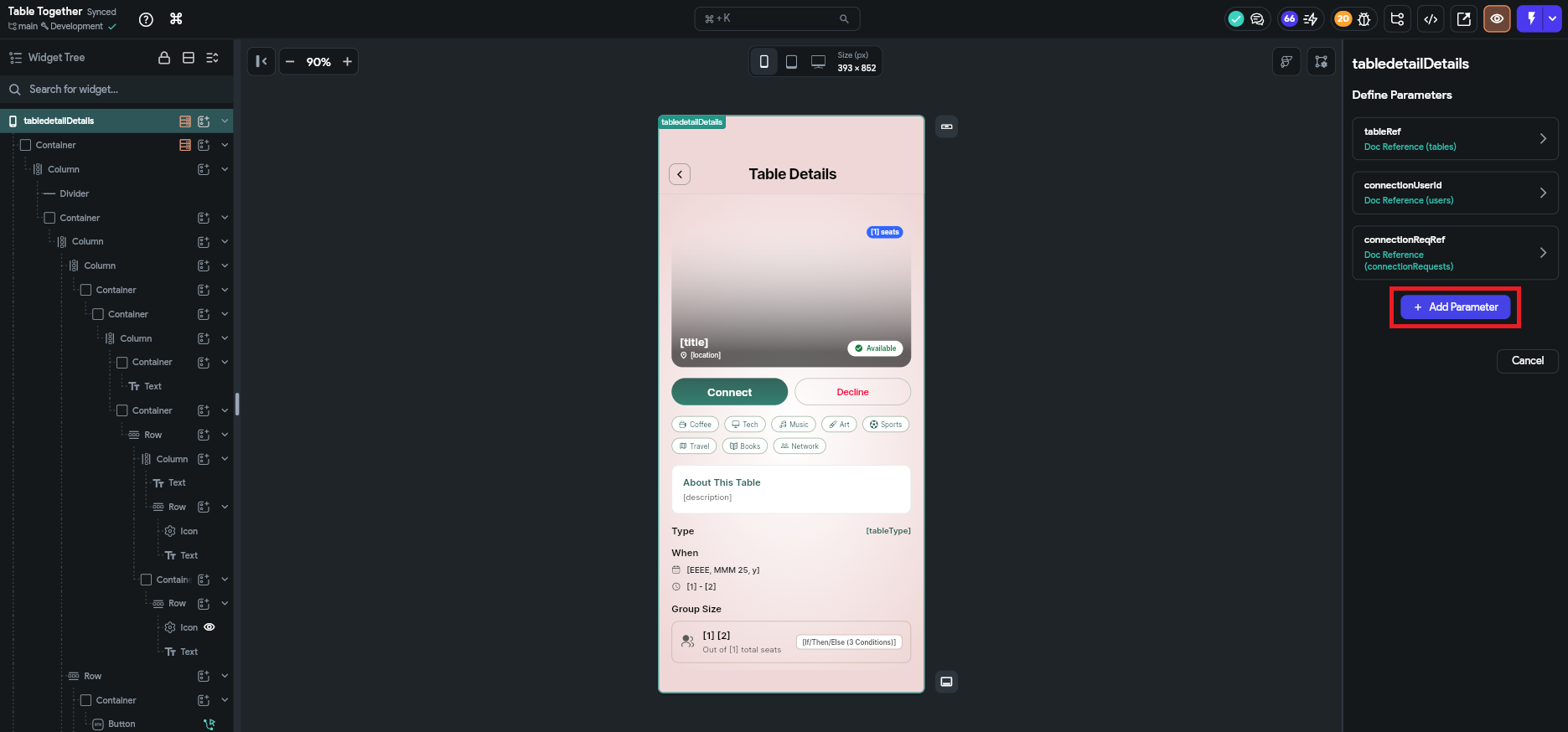
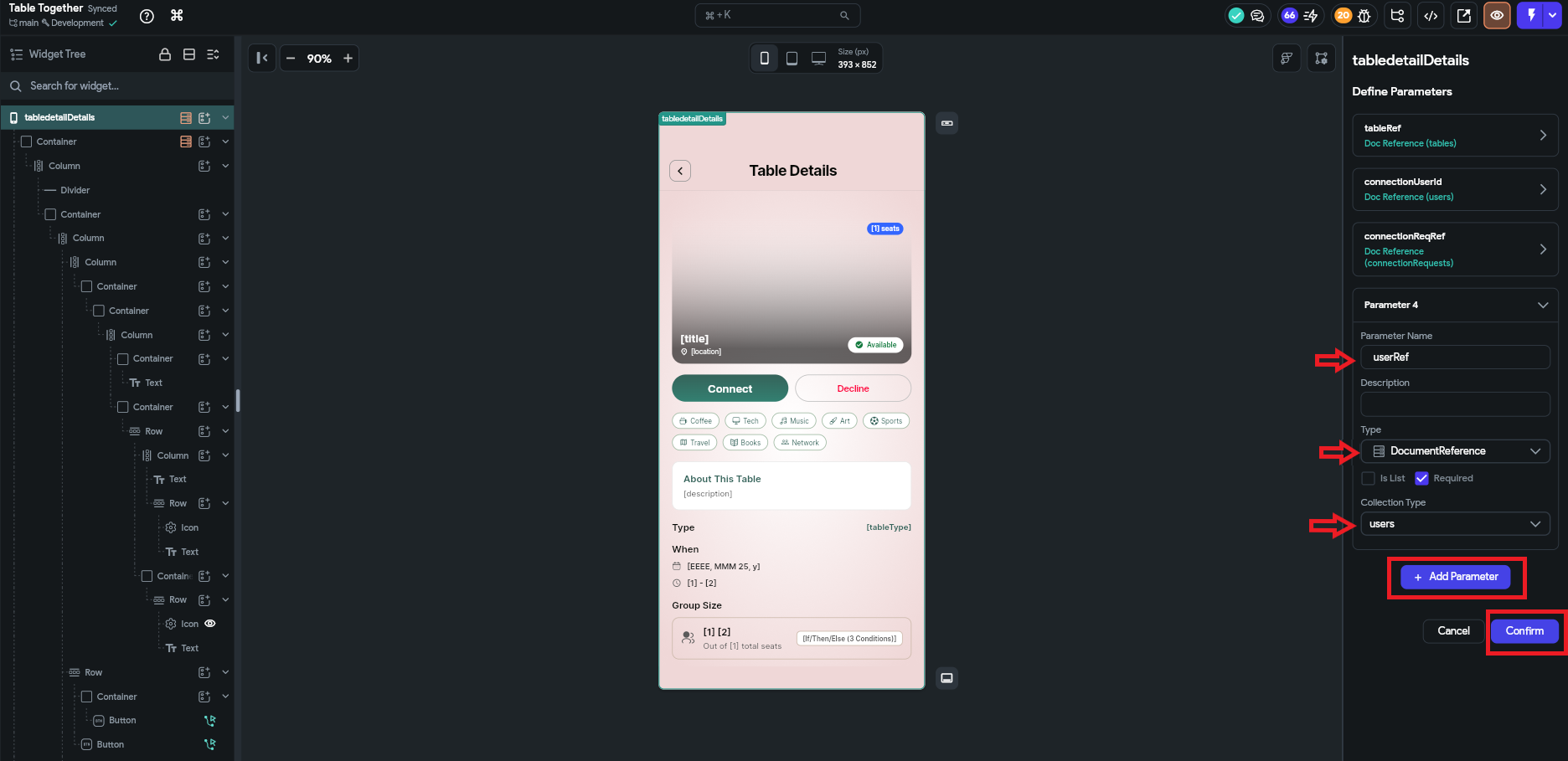
Now fill in the fields:
- Name → e.g. userId, userName, chatId
- Type → select correct type (String, int, DocumentReference, etc.)
- Required → enable if this value must be passed
- Default Value → optional fallback value
- Click Save
Now Screen 2 is ready to receive data.
Step 2: Pass Data from Screen 1 (Sender Screen)
Now go to Screen 1 where you want to send data.
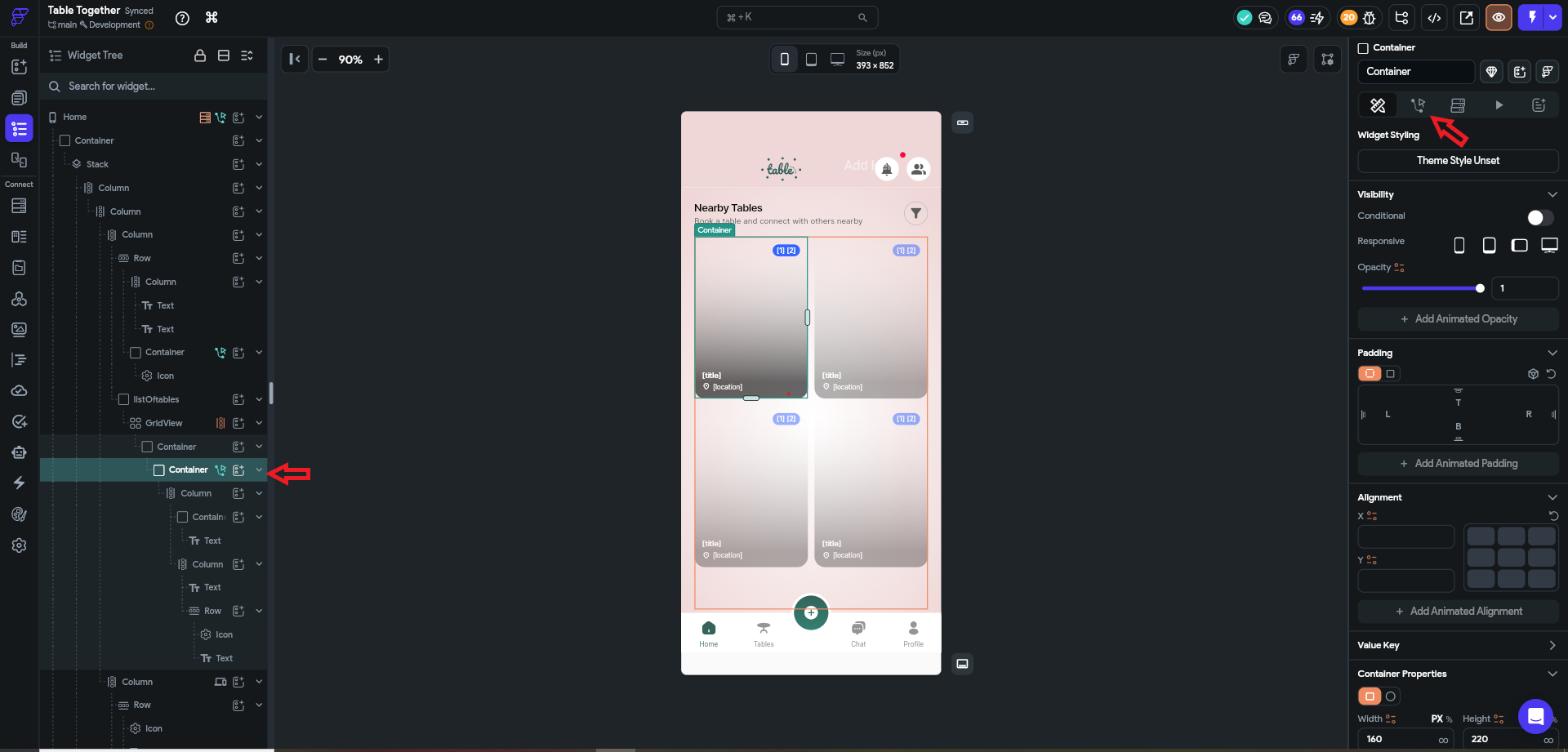
- Select a button or any action (e.g. Navigate To Page).
- Choose Navigate To Screen 2.
- Enable the Parameters section.
- You will see the parameters you created in Screen 2.
- Now assign values to them:
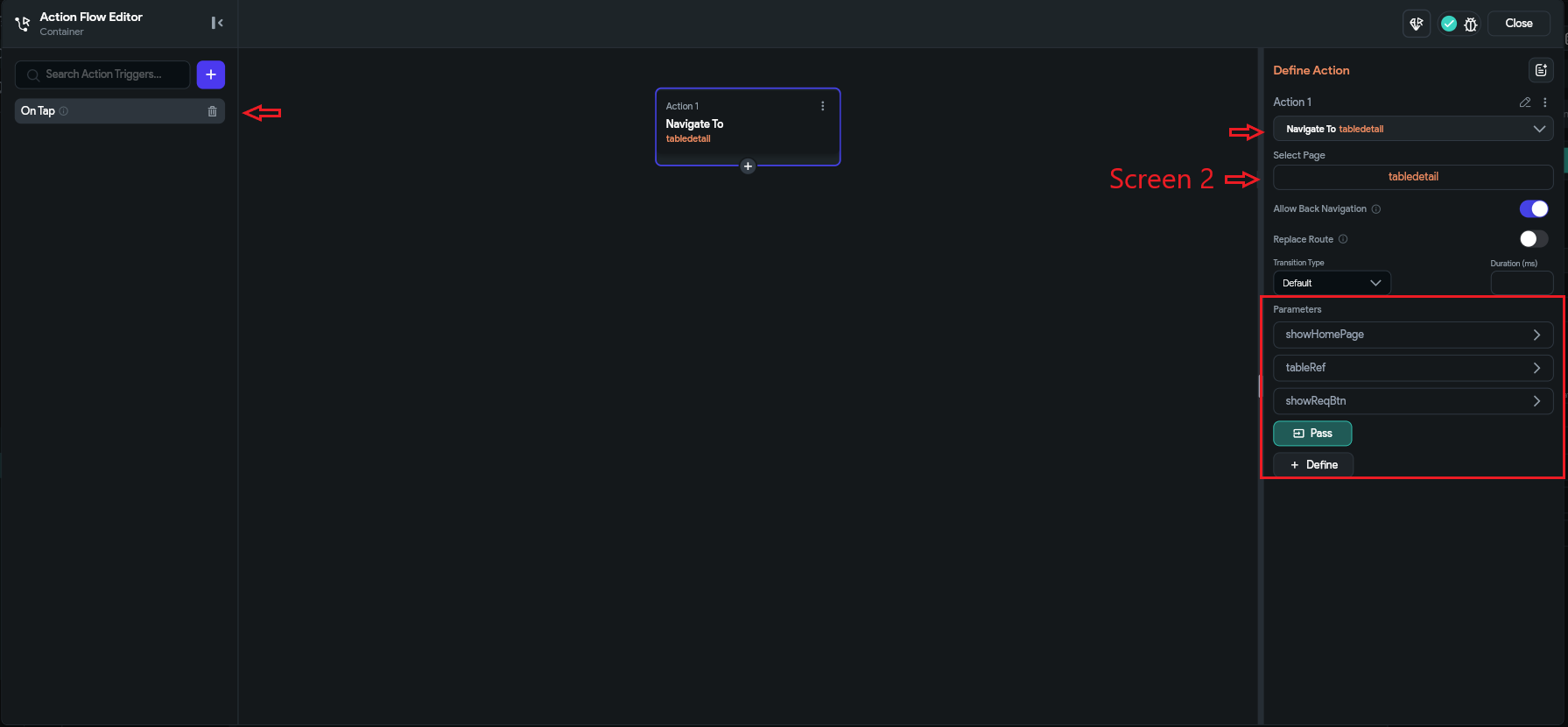
Example:
- userId = currentUser.uid
- userName = "Ali"
- chatId = selectedChatRef
Save the action
How it works internally
- Screen 1 sends the data during navigation.
- Screen 2 receives the data automatically through Page Parameters.
- FlutterFlow maps the values to the defined variables.
Example Flow
Screen 1 (Sender)
- userId = "123"
- userName = "Ali"
Navigate To Screen 2
Screen 2 (Receiver)
- userId → used in Firestore query
- userName → displayed in Text widget
Usage of Page Parameters
Page Parameters are commonly used for:
- Opening detail pages (User Profile, Product Details)
- Chat screens (chatId, receiverId)
- Passing selected item data
- Dynamic API requests based on selected data
Limitations of Page Parameters
Page Parameters are temporary and only exist on the current screen. They cannot be shared globally across the app. Once the user navigates away or refreshes the screen, the data is lost. Also, they are not suitable for storing persistent or large-scale data — they should only be used for screen-specific navigation data.
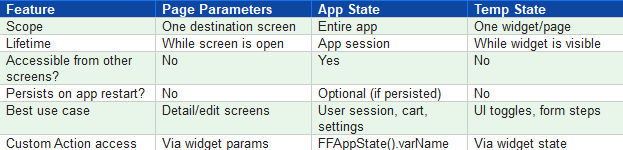
4.2 Quick Summary Comparison
1. How do you pass data between screens in FlutterFlow?
FlutterFlow allows you to pass data between screens using Page Parameters, App State, and temporary state variables. Page Parameters are used for sending data during navigation, while App State manages shared data across the entire application.
2. What are Page Parameters in FlutterFlow?
Page Parameters are variables created on a destination screen that allow another screen to send data during navigation. They work similar to function arguments and are commonly used for passing IDs, user information, or selected item data.
3. What is App State in FlutterFlow?
App State is a global state management feature in FlutterFlow that stores data accessible across all screens and components. It is useful for managing shared values like user roles, theme settings, filters, and cart information.
4. What is Temp Data or Local State in FlutterFlow?
Temp Data, also known as Local State or Widget State, is a temporary variable that exists only within a specific widget, component, or page. It cannot be accessed from other screens and is removed when the widget or page is destroyed.
5. What is the difference between Page State and App State in FlutterFlow?
The main difference is accessibility. Page State and Component State are limited to a specific screen or component, while App State is available throughout the entire application. Page State is useful for local UI changes, whereas App State is better for shared application data.
6. When should I use Page Parameters in FlutterFlow?
Use Page Parameters when you need to send data from one screen to another during navigation. Common examples include opening a user profile page with a user ID, displaying product details, or loading a specific chat conversation.
7. When should I use App State instead of Page Parameters?
Use App State when multiple screens need access to the same data. For example, storing a user's theme preference, authentication status, shopping cart items, or global filters is better handled through App State.
8. Does FlutterFlow App State save data permanently?
App State does not automatically save data permanently. If the Persisted option is enabled, the value is stored locally on the user's device and remains available after reopening the app. Without persistence, the data is lost when the app session ends.
9. Can FlutterFlow Page Parameters store large amounts of data?
No. Page Parameters are designed for passing small amounts of screen-specific data, such as IDs, references, or simple values. Large or permanent data should be stored in a database like Firebase Firestore.
10. What data types are available in FlutterFlow State Management?
FlutterFlow supports multiple data types for state variables, including:
- String for text values
- Integer for whole numbers
- Double for decimal values
- Boolean for true/false conditions
- Document for Firestore documents
- Document Reference for database references
- Image Path for image locations
- Uploaded File for file information
11. Can users modify FlutterFlow App State values?
App State values can be updated through app actions, API responses, authentication events, or other triggers. However, sensitive information should not be stored only in App State because it is intended for UI-level state management, not secure data storage.
12. What is the best way to manage data in FlutterFlow?
The best approach depends on the type of data:
- Use Temp Data/Page State for temporary screen-level values.
- Use Page Parameters for passing data during navigation.
- Use App State for shared app-wide values.
- Use Firebase or another backend database for permanent user data and business information.
.svg)
.svg)


.avif)
