


Firebase Custom Claims Setup Guide (Admin Role)
Overview
Custom Claims are a secure method used in Firebase Authentication to manage user roles such as admin, user, or moderator. Instead of storing these roles in Firestore, the role information is directly added to the user's authentication token. This token is generated by Firebase after login and contains verified user information that cannot be modified from the client side.
The main advantage of Custom Claims is security. Since the role is stored inside the Firebase ID token, users cannot manually change their role from the app or browser. Only a trusted backend using the Firebase Admin SDK can assign or update these claims, ensuring full control over who becomes an admin.
When a user logs in, Firebase automatically includes these claims in their token, and the application can check them to control access to specific features or screens. For example, if a user has "admin": true in their token, they are allowed to access admin-only functions, otherwise access is restricted.
Why Use Custom Claims?
Start the setup guidance:
Step 1: create a new user throughout the signup foam
Step 2: Goto the “Google Cloud Console” and select you project
Step 3: open the Terminal (Cloud Shell) and your screen looks like.
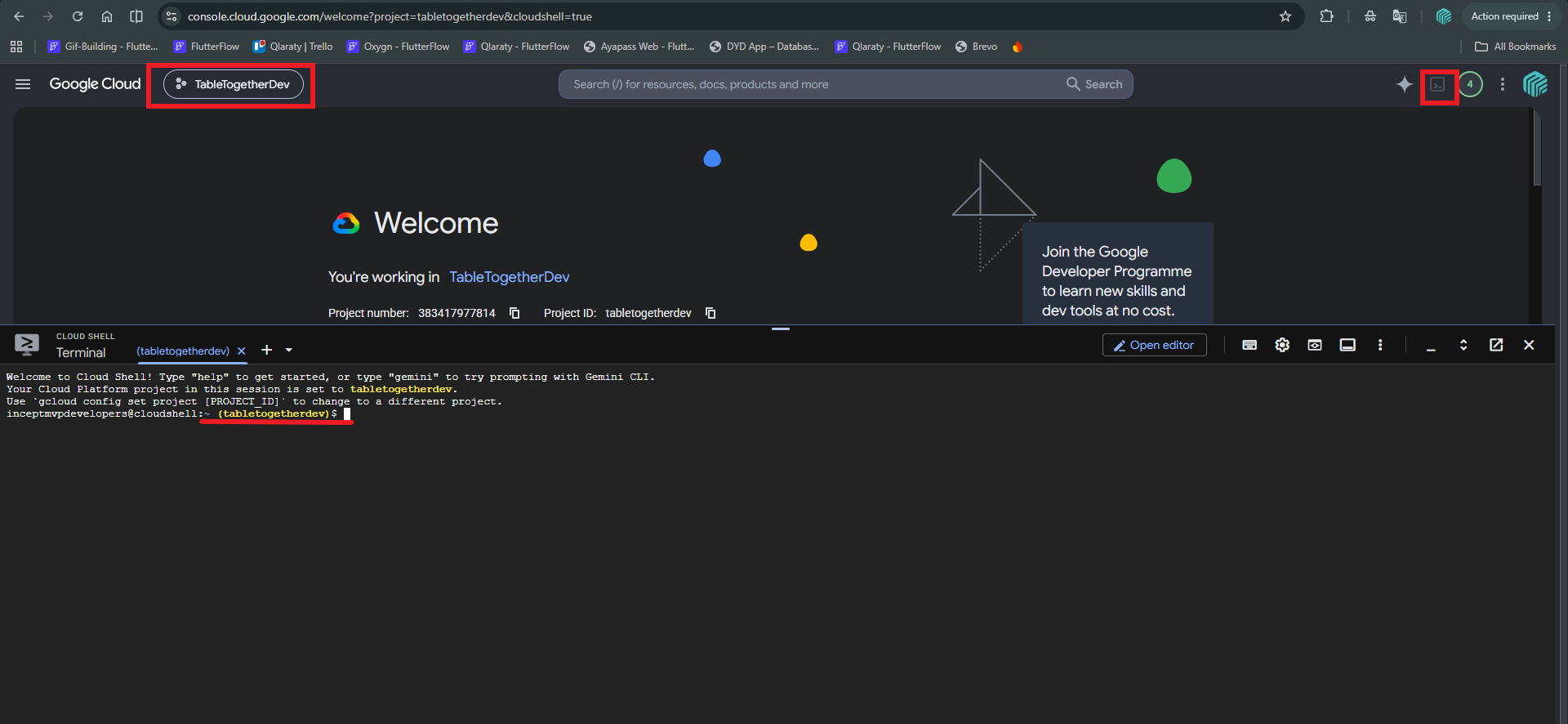
Step 4: Initialize Project (run these commands one-by-one)
- npm init -y
- npm install firebase-admin
Step 5: Create a file
- Run this command on terminal to create a file (nano setAdmin.js)
- Paste this code in the terminal
const admin = require("firebase-admin");
admin.initializeApp({
credential: admin.credential.applicationDefault(),
});
const uid = "USER_UID_HERE";
admin.auth().setCustomUserClaims(uid, { admin: true })
.then(() => {
console.log("Admin claim set!");
process.exit(0);
})
.catch((error) => {
console.error(error);
process.exit(1);
});
- Do not press the enter before adding the "USER_UID_HERE" on your code
- Getting the User_Id
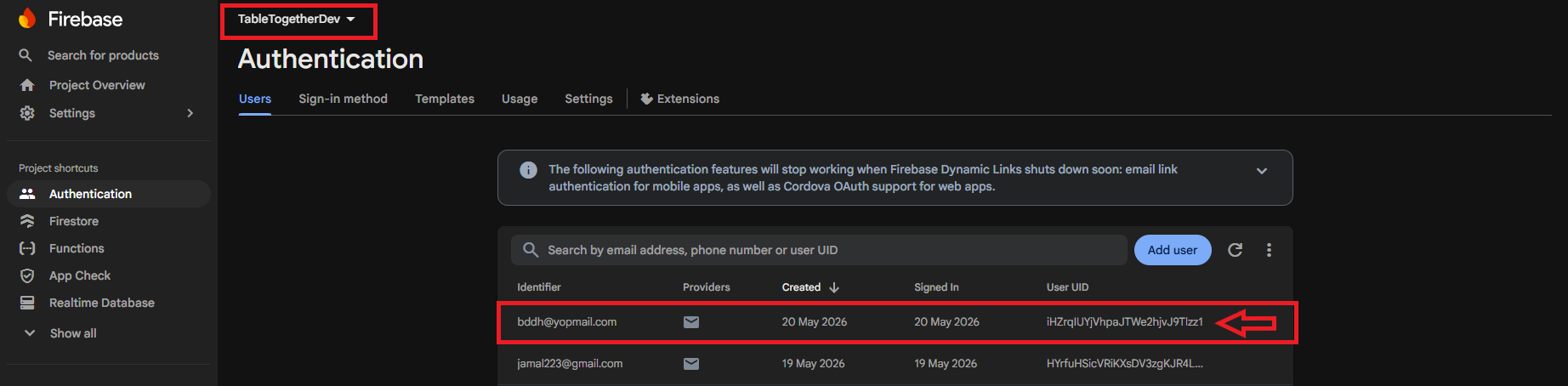
- Go to the firebase, then select your project and move to the Authentication section
- Copy the newly signup user’s “UID”
- Getting the User_Id
- Paste the copied UID in that provided code here "USER_UID_HERE" and your terminal looks like.
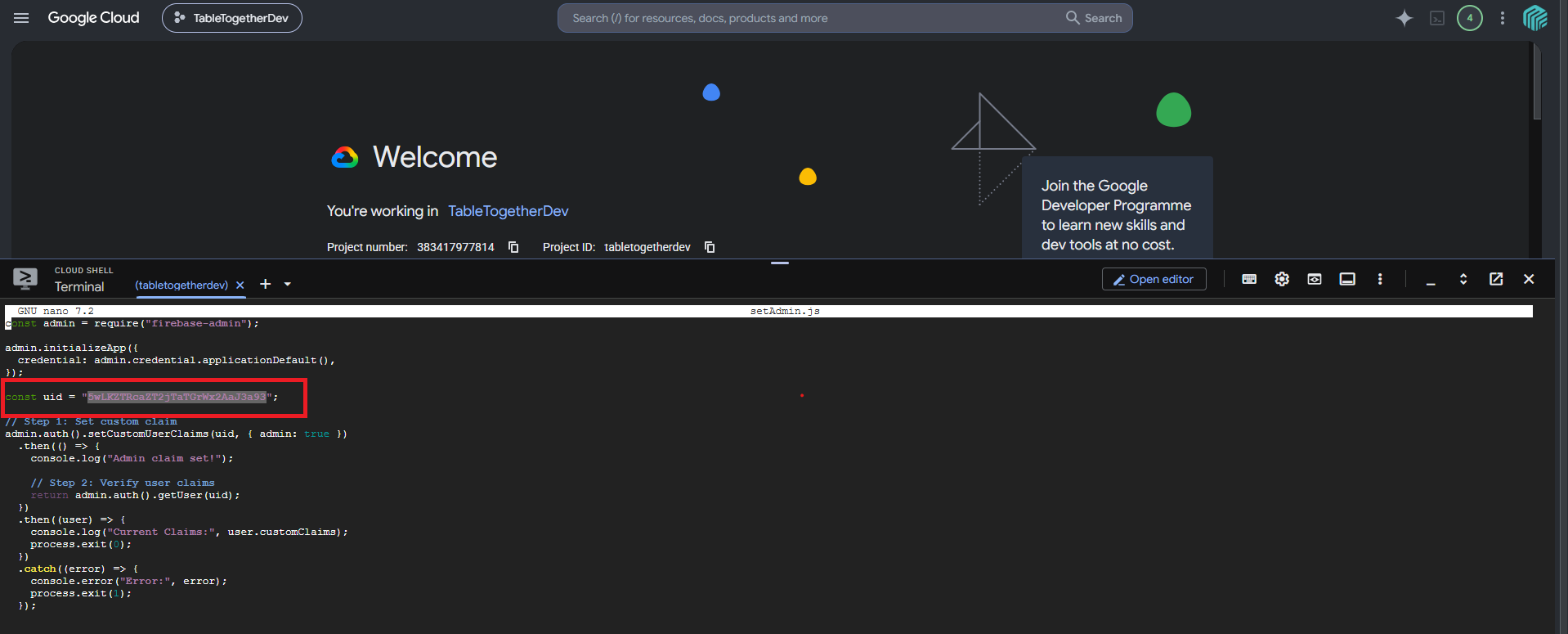
- Save the code file with these commands
- Press (CTRL+X) then (Y) then (ENTER)
Step 6: Run that file with these commands
- node setAdmin.js
- You got the expected Output (Admin claim set!)
Step 7: Adding Admin to the firebase advanced rule
- Goto the Firebase then select your project and move to the firestore section and then
move to the rules section and past the “isAdmin()” function here.
function isAdmin() {
return IsAuth() && request.auth.token.admin == true;
}
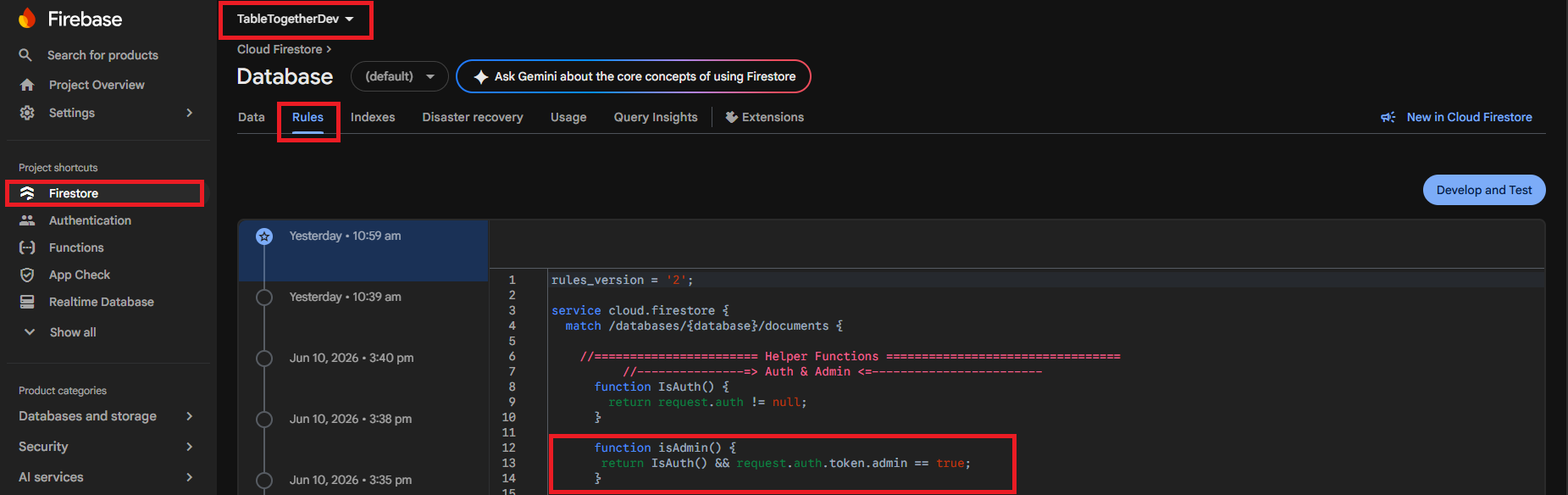
Suppose you want to give the access to the admin of any table simple assign the
isAdmin() function in the firebase rules

Step 8: Verify admin user in Flutterflow
- Goto the flutterflow and move to your own project
- Paste that code in the custom actions
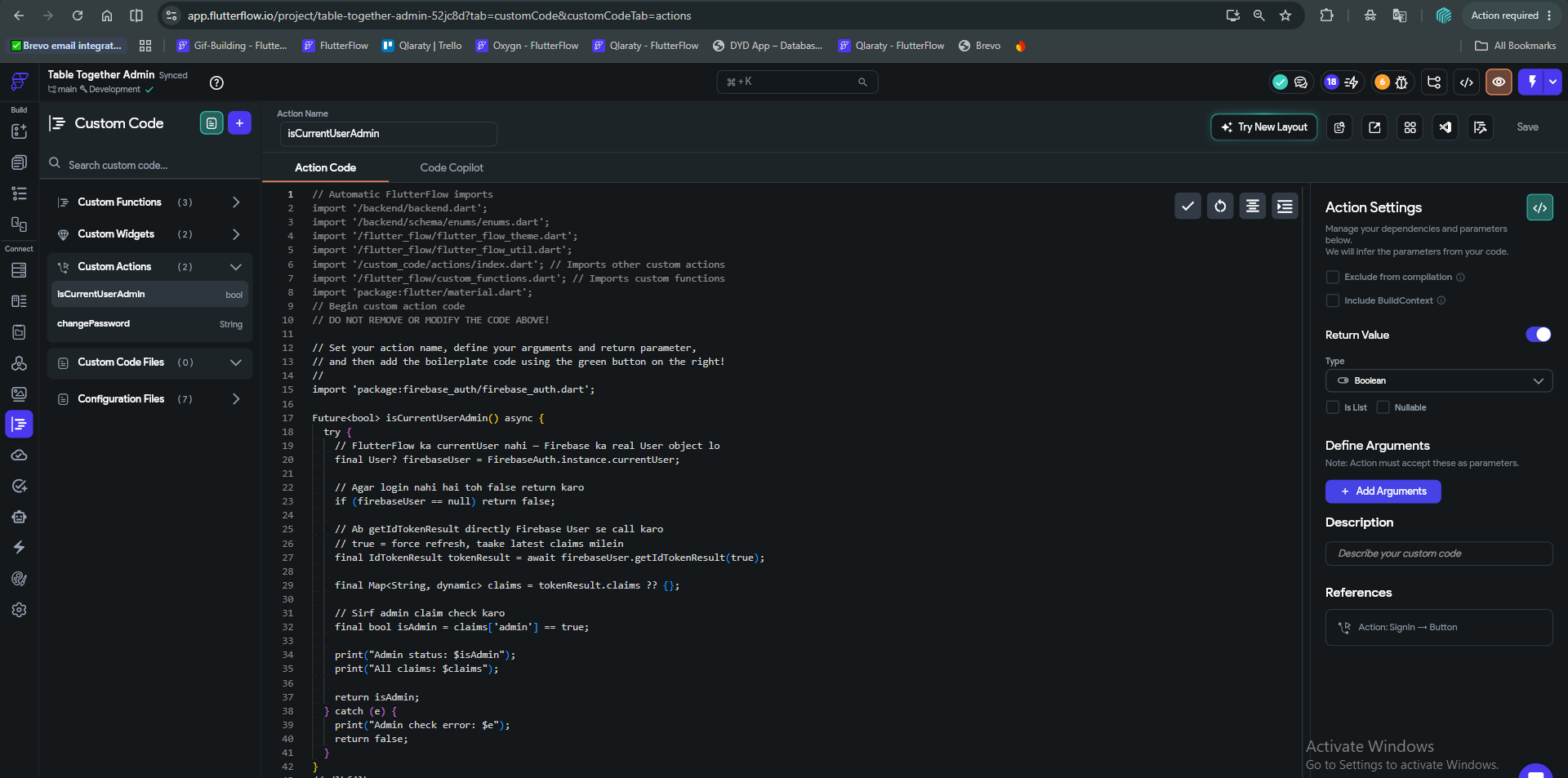
- Here is the code
// Automatic FlutterFlow imports
import '/backend/backend.dart';
import '/backend/schema/enums/enums.dart';
import '/flutter_flow/flutter_flow_theme.dart';
import '/flutter_flow/flutter_flow_util.dart';
import '/custom_code/actions/index.dart'; // Imports other custom actions
import '/flutter_flow/custom_functions.dart'; // Imports custom functions
import 'package:flutter/material.dart';
// Begin custom action code
// DO NOT REMOVE OR MODIFY THE CODE ABOVE!
// Set your action name, define your arguments and return parameter,
// and then add the boilerplate code using the green button on the right!
//
import 'package:firebase_auth/firebase_auth.dart';
Future<bool> isCurrentUserAdmin() async {
try {
// FlutterFlow ka currentUser nahi — Firebase ka real User object lo
final User? firebaseUser = FirebaseAuth.instance.currentUser;
// Agar login nahi hai toh false return karo
if (firebaseUser == null) return false;
// Ab getIdTokenResult directly Firebase User se call karo
// true = force refresh, taake latest claims milein
final IdTokenResult tokenResult = await firebaseUser.getIdTokenResult(true);
final Map<String, dynamic> claims = tokenResult.claims ?? {};
// Sirf admin claim check karo
final bool isAdmin = claims['admin'] == true;
print("Admin status: $isAdmin");
print("All claims: $claims");
return isAdmin;
} catch (e) {
print("Admin check error: $e");
return false;
}}
Step 9: Validate your admin
- After the admin pressed the login button those action defines as
- Add action (Auth login)
- Call the custom action (isCurrentUserAdmin) its returns the true or false
- Add conditional logic if true (this user is admin) else (user not an admin)
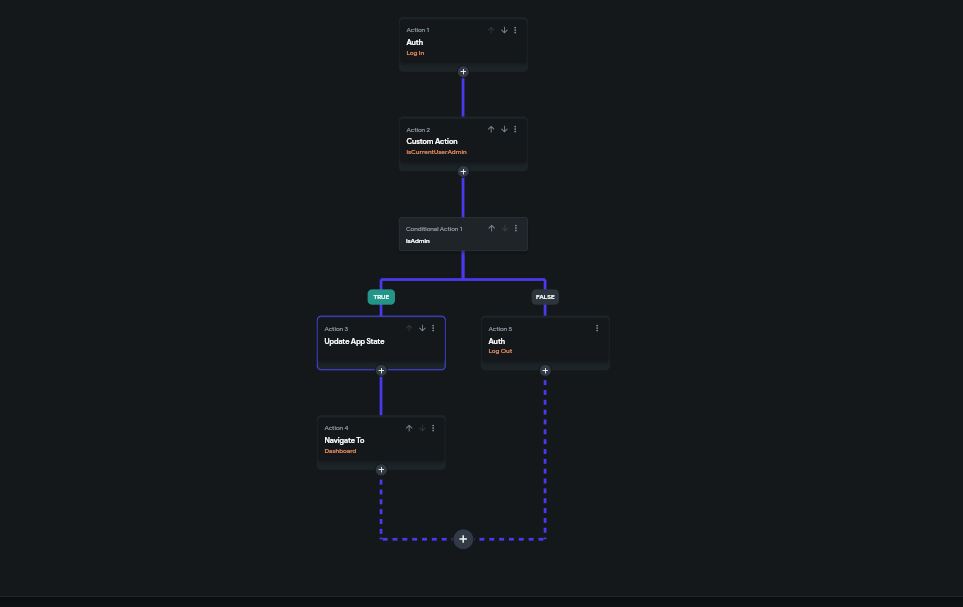
Finished custom claim Setup
1. What are Firebase Admin Custom Claims?
Firebase Admin Custom Claims are attributes added to Firebase Authentication user tokens that store specific permissions or roles, such as administrator access. They allow Firebase Security Rules to control user access securely.
2. Why should I use Custom Claims for Firebase admin roles?
Custom Claims provide a more secure way to manage administrator roles because users cannot modify their own permissions from the client-side application. Only trusted backend services can assign or remove these roles.
3. Are Firebase Custom Claims more secure than storing roles in Firestore?
Yes. While storing roles in Firestore can work, Custom Claims reduce the risk of unauthorized changes because the values are managed through Firebase Admin SDK or secure backend functions.
4. How do Firebase Security Rules check admin privileges?
Firebase Security Rules can directly check authentication token claims to verify whether a user has admin permissions. For example, a rule can allow access when the user's token contains { "admin": true }.5. Do Firebase Custom Claims reduce database costs?
Yes. Since Firestore Security Rules can validate roles directly from the Firebase Authentication token, your application does not need additional Firestore reads to check user permissions.
6. Who can assign Firebase Custom Claims?
Only trusted server-side environments, such as Firebase Cloud Functions or applications using the Firebase Admin SDK, can create or update Custom Claims.
7. How long does it take for Custom Claims to update?
After a Custom Claim is updated, users usually need to refresh their authentication token by signing out and signing back in or forcing a token refresh before the changes appear.
8. Can users edit their own Firebase Custom Claims?
No. Firebase Custom Claims cannot be modified from the client application. Allowing users to update these values directly would create security vulnerabilities.
9. What is an example of an admin Custom Claim in Firebase?
A common example is:
{
  "admin": true
}
This tells Firebase Security Rules that the authenticated user has administrator privileges.
10. Are Firebase Custom Claims suitable for role-based access control?
Yes. They are commonly used for role-based access control (RBAC), allowing applications to manage permissions for admins, moderators, managers, and other user roles securely.
.svg)
.svg)


.avif)
